
The Export / Import Captures feature enables you to securely transfer investigative data between isolated environments (such as Cloud VMs or dark web investigations) and CMS systems connected to your backend server.
This method is ideal for users who cannot sync directly with the backend due to security or network restrictions.
When Should You Use This Feature?
- Dark web investigations conducted on isolated computers or VMs.
- Secure environments without network access to the backend API.
- Moving sensitive captures between online environments and secured environments.
Step 1: Export Captures (Isolated Machine)
Complete your capture
Complete your capture using the Forensic OSINT Chrome Extension.
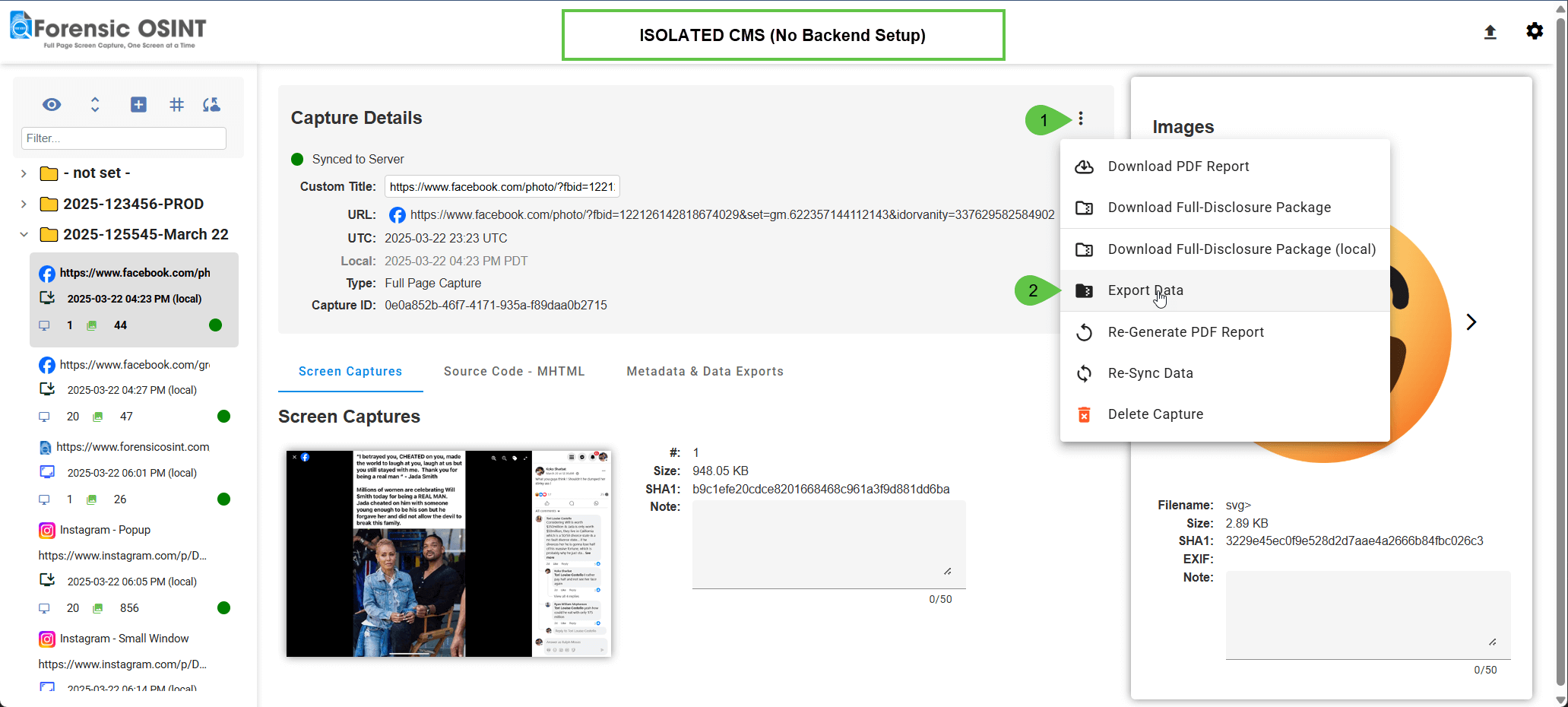
Export the data
In the CMS, select the capture and click the "Export Data" option from the menu.
Set an encryption password
Set an encryption password for secure export.
Download the archives
Multiple encrypted ZIP archives will be generated:
- Screen Captures
- Images
- MHTML Source Code
- Overview Metadata
Transfer the files
Transfer the ZIP archives to the destination machine (via USB, secure cloud storage, etc.).
Step 2: Import Captures (CMS with Backend Setup)
Open Import
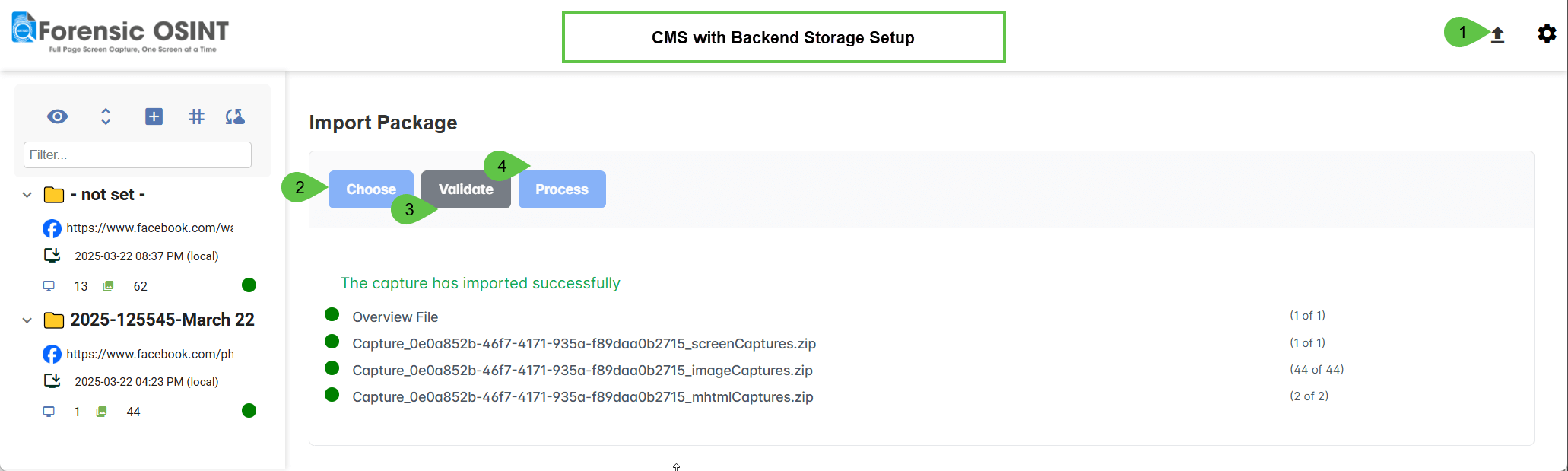
On the CMS connected to your backend, click the "Import" option.
Select your files
Select all ZIP files with the same Capture ID.
Enter the password
Enter the encryption password you set during export.
Validation and processing
The CMS will:
- Validate the files.
- Process and import them into your CMS.
Automatic sync
Once imported, the captures will automatically sync with your backend.
Key Benefits
- Secure Encryption: CEK/KEK encryption protects data during transfer.
- Flexible Transfer Options: USB drives, encrypted cloud storage, etc.
- Backend Integration: Imported captures automatically sync with your backend for secure long-term storage and reporting.
This feature ensures your data remains protected and operational even in disconnected environments.