
What You'll Achieve
This guide walks you through two methods for routing Google Chrome through Tor so you can capture dark web evidence with Forensic OSINT.
Browse .onion Sites
Access dark web sites through Tor securely using Google Chrome.
Capture Evidence
Use Forensic OSINT inside Google Chrome to capture and preserve dark web content.
Choose Your Setup
Pick between a quick setup (lower security) or a VM + Whonix setup (most secure).
Quick Method — Tor Browser as a Local Proxy
Only Chrome is routed through Tor. Other apps on your host can still reach the internet directly. If the host OS is compromised or misconfigured, traffic can leak outside Tor. Good for quick checks, not ideal for higher-risk investigations.
How It Works
When Tor Browser is running, it creates a local SOCKS5 proxy on localhost:9150. If you launch Chrome with special startup flags, Chrome sends all of its web traffic into that proxy — routing it through Tor's network without using Tor Browser itself.
The key is that you must start Chrome using the Tor-enabled launcher every time you want Tor routing.
Steps
Install and start Tor Browser
Leave it running so the local proxy is available.
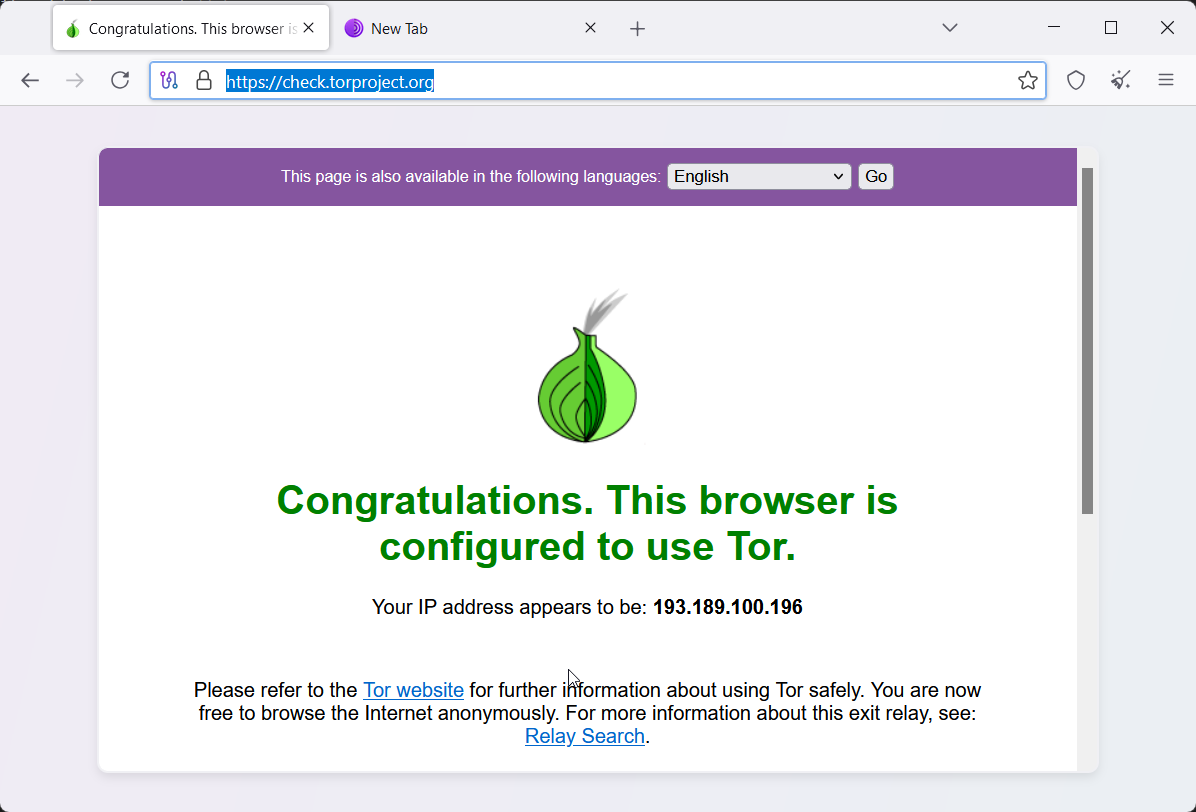
Important: Tor Browser must be installed, started, and left running in the background for Chrome to connect through Tor. If Tor Browser is closed, Chrome will not use Tor and your real IP address will be exposed.
Create a Tor-enabled Chrome launcher
Windows
- Close all Chrome windows.
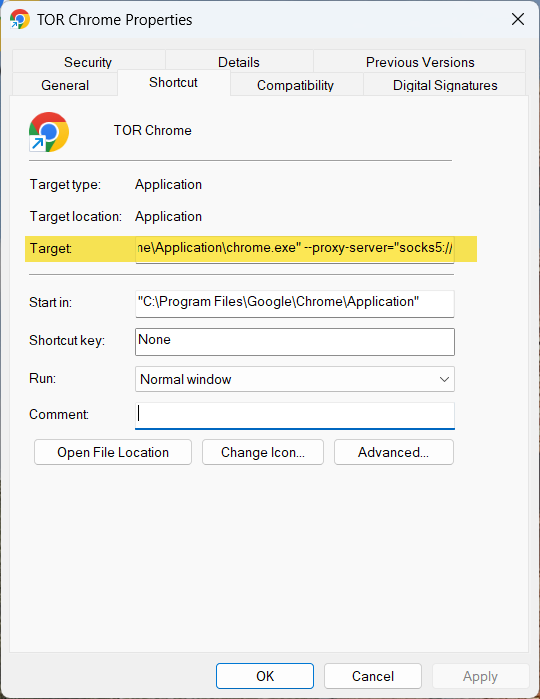
- Copy your Chrome desktop shortcut; rename the copy to "Chrome (Tor)".
- Right-click Chrome (Tor) → Properties → Target.
- Append the flags below after the existing path:
--proxy-server="socks5://localhost:9150" --host-resolver-rules="MAP * ~NOTFOUND , EXCLUDE localhost"- Apply → OK.
- To use Tor: double-click the Chrome (Tor) icon you just created.
macOS
/Applications/Google\ Chrome.app/Contents/MacOS/Google\ Chrome \
  --proxy-server="socks5://localhost:9150" \
  --host-resolver-rules="MAP * ~NOTFOUND , EXCLUDE localhost"
Linux
google-chrome \
  --proxy-server="socks5://localhost:9150" \
--host-resolver-rules="MAP * ~NOTFOUND , EXCLUDE localhost"Verify Tor is active
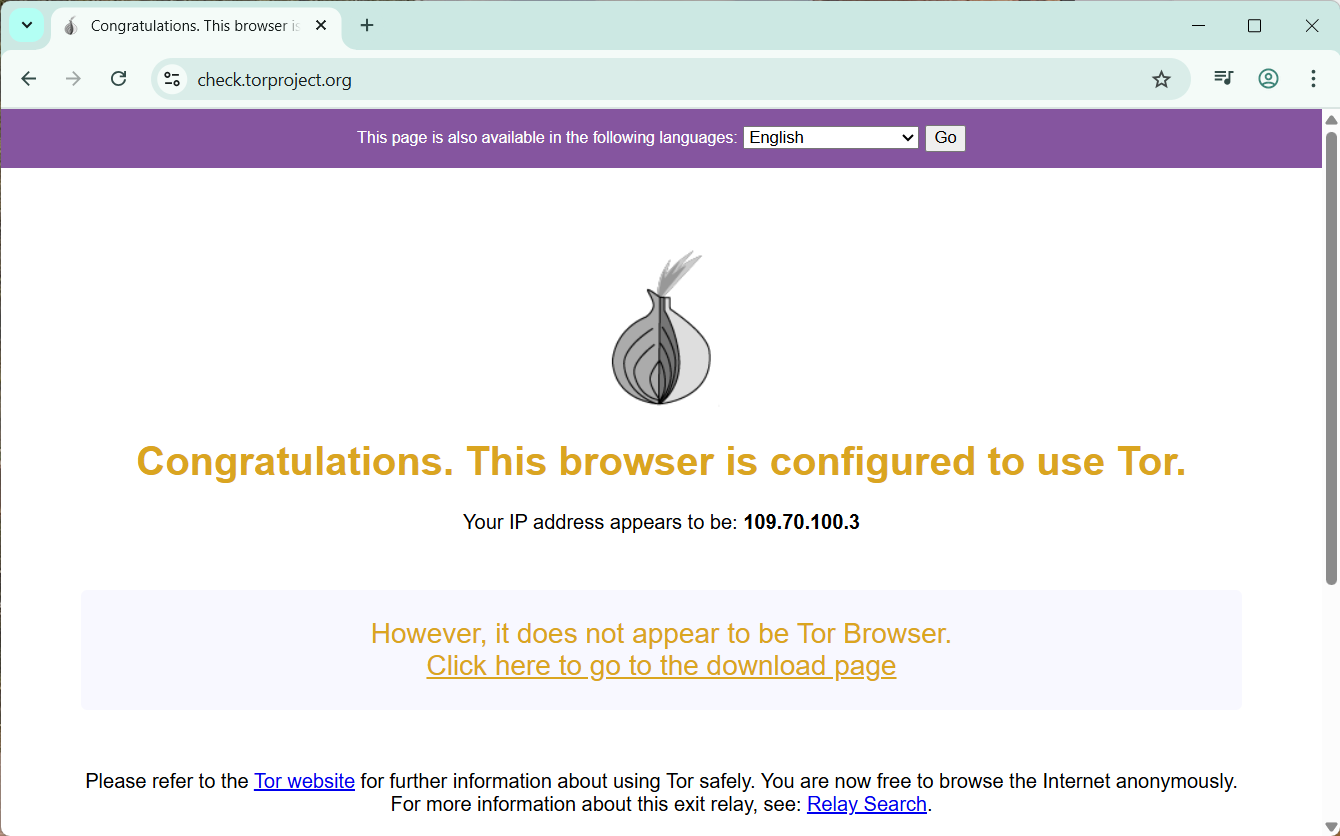
In Chrome (launched with the Tor shortcut/command), visit check.torproject.org. You should see confirmation that you are using Tor.
Install Forensic OSINT Chrome extension
Install the extension from the Chrome Web Store.
When Chrome is already running, every new Chrome window attaches to the first process that was launched. If your first Chrome window was started with the Tor shortcut, all new windows will also route through Tor. If your first window was started normally, clicking the Tor shortcut afterward will bypass Tor.
Most Secure Method — VM + Whonix Gateway
Why it's more secure: You use two virtual machines. The Whonix Gateway VM is the only machine allowed to touch the internet; it forces all traffic through Tor. Your investigation VM sits on an isolated internal network and can only reach the gateway. Even if the browser or investigation VM is compromised, your real IP cannot bypass Tor.
How It Works
The gateway VM has two virtual network cards: one for the internet (NAT) and one for a private "Whonix" internal network. Your investigation VM has one virtual network card attached only to that same internal network. You give the investigation VM a static IP, point its gateway/DNS at the Whonix Gateway IP, and every packet must go through the Tor gateway.
What You'll Run in VirtualBox
Whonix Gateway
Handles all Tor routing for the internal network. The network name is usually Whonix.
Investigation VM
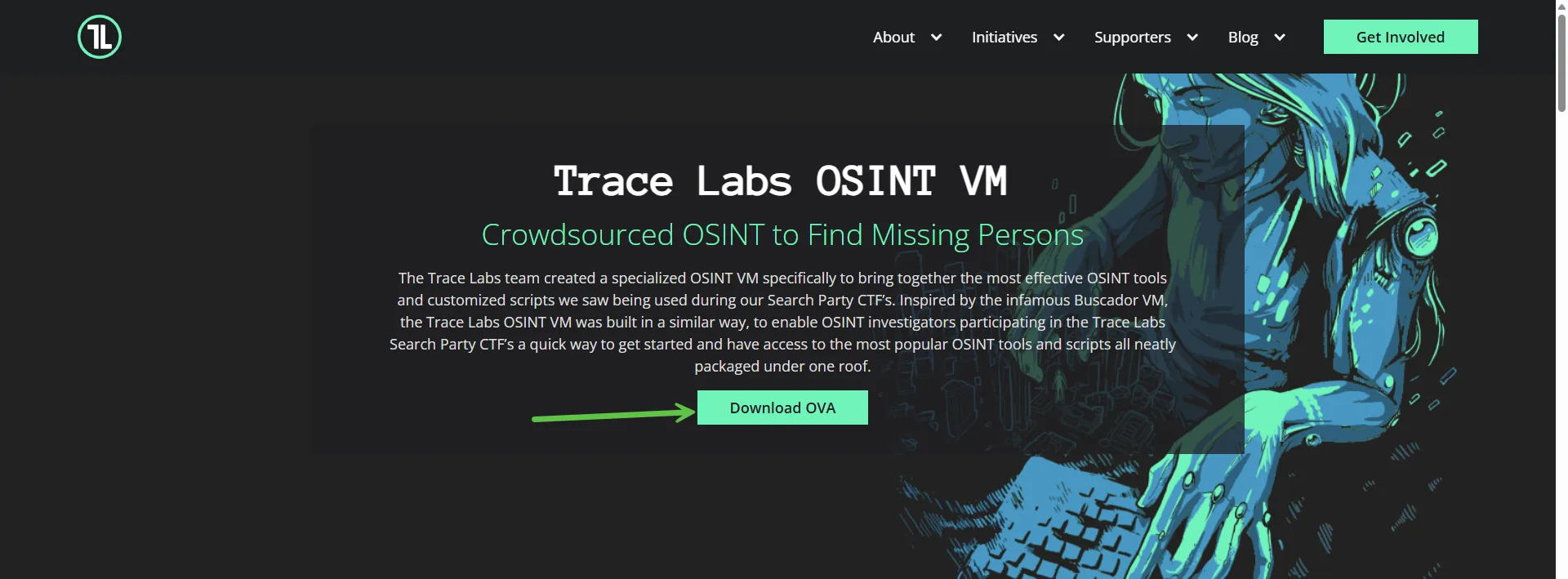
We recommend the Trace Labs OSINT VM (preloaded with OSINT tools), but any VM (Ubuntu, Windows) works. Install Chrome and Forensic OSINT inside this VM.
Note: Whonix provides a secure Workstation VM, but it is not required. You can use any VM as your investigation machine as long as it is attached to the Whonix internal network.
Default credentials:
- Trace Labs OSINT VM:
osint / osint - Whonix: often auto-logs in as
user. If prompted, tryuserwith a blank password.
Steps
Install VirtualBox
Download and install from virtualbox.org.
Import and start the Whonix Gateway VM
Download the official Whonix Gateway image and import it into VirtualBox.
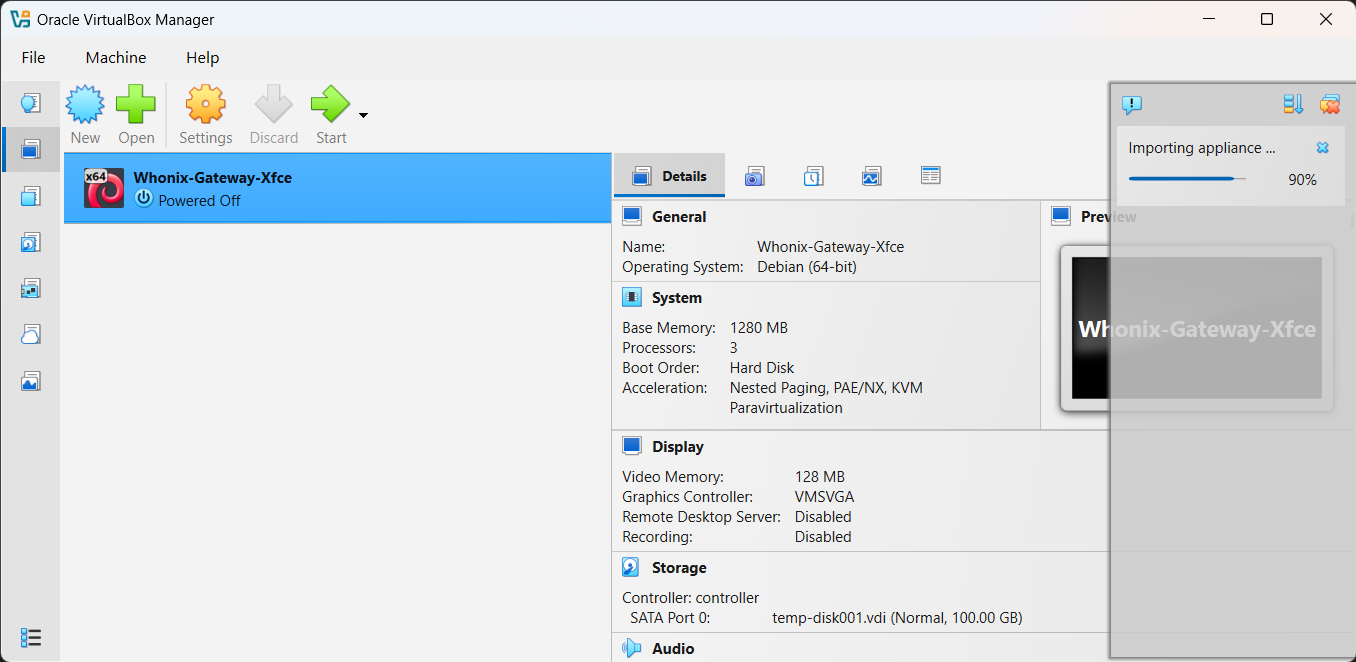
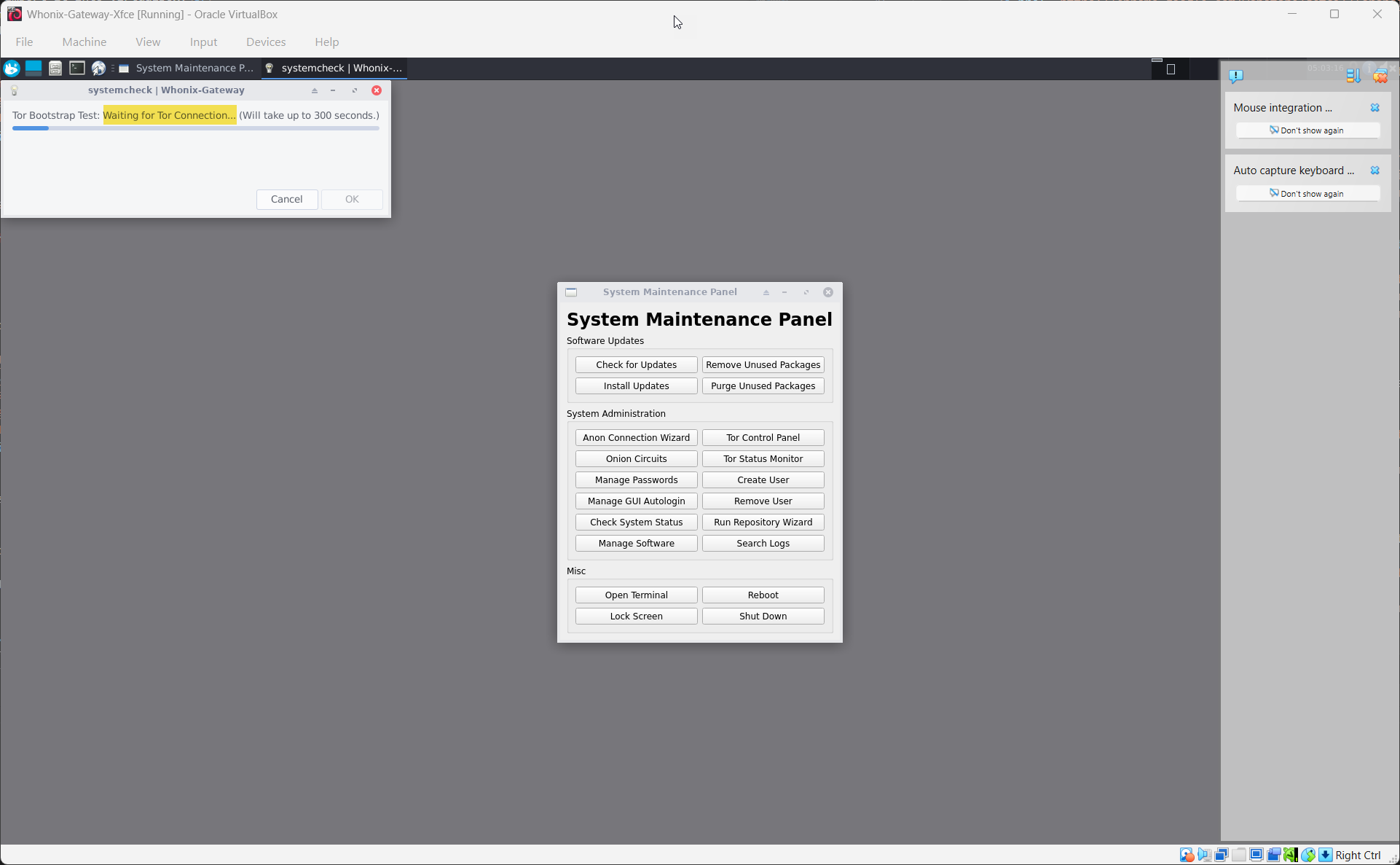
Start the VM and wait for Tor to finish connecting.
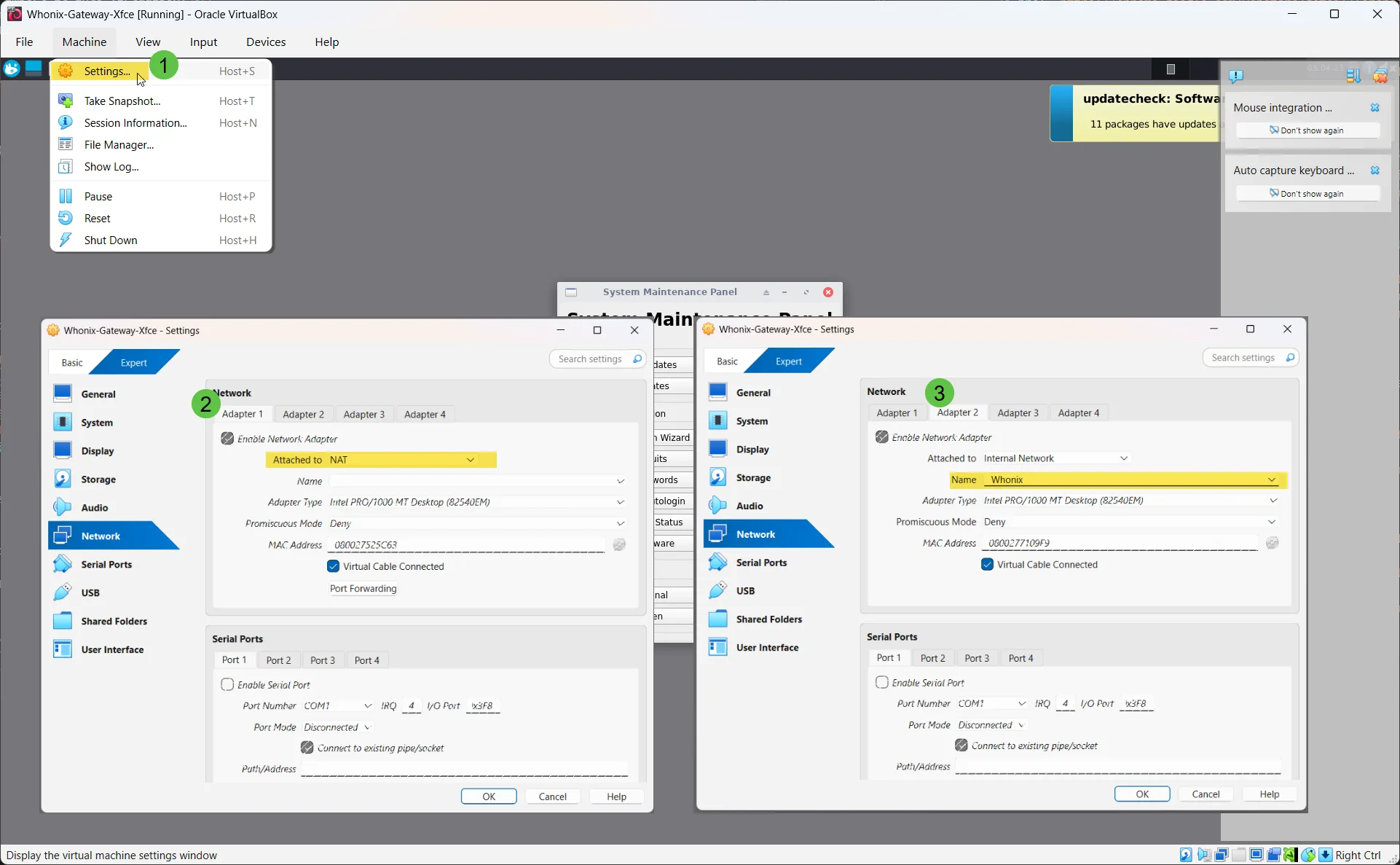
Confirm Whonix Gateway network adapters
In VirtualBox → Settings → Network:
- Adapter 1: NAT (internet access)
- Adapter 2: Internal Network with Name:
Whonix
Add your Investigation VM
Option A: Import the Trace Labs OSINT VM, then log in with osint / osint.
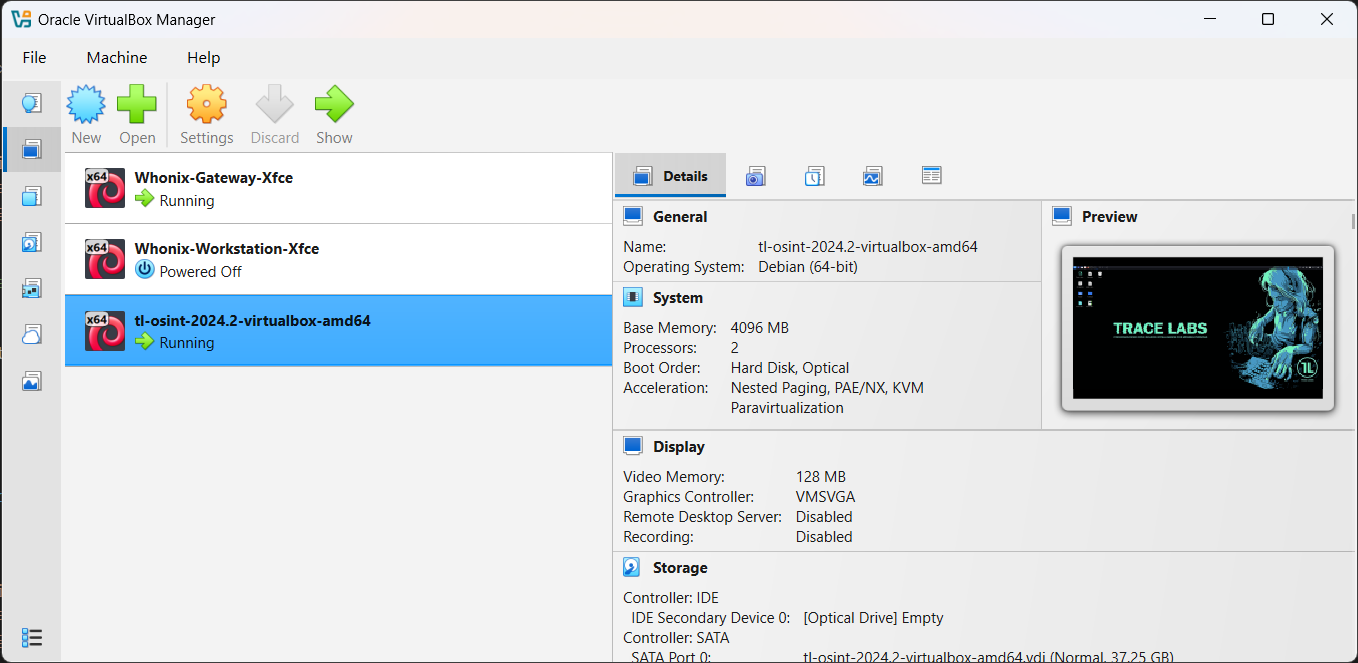
Option B: Create your own VM (Ubuntu or Windows) and install normally.
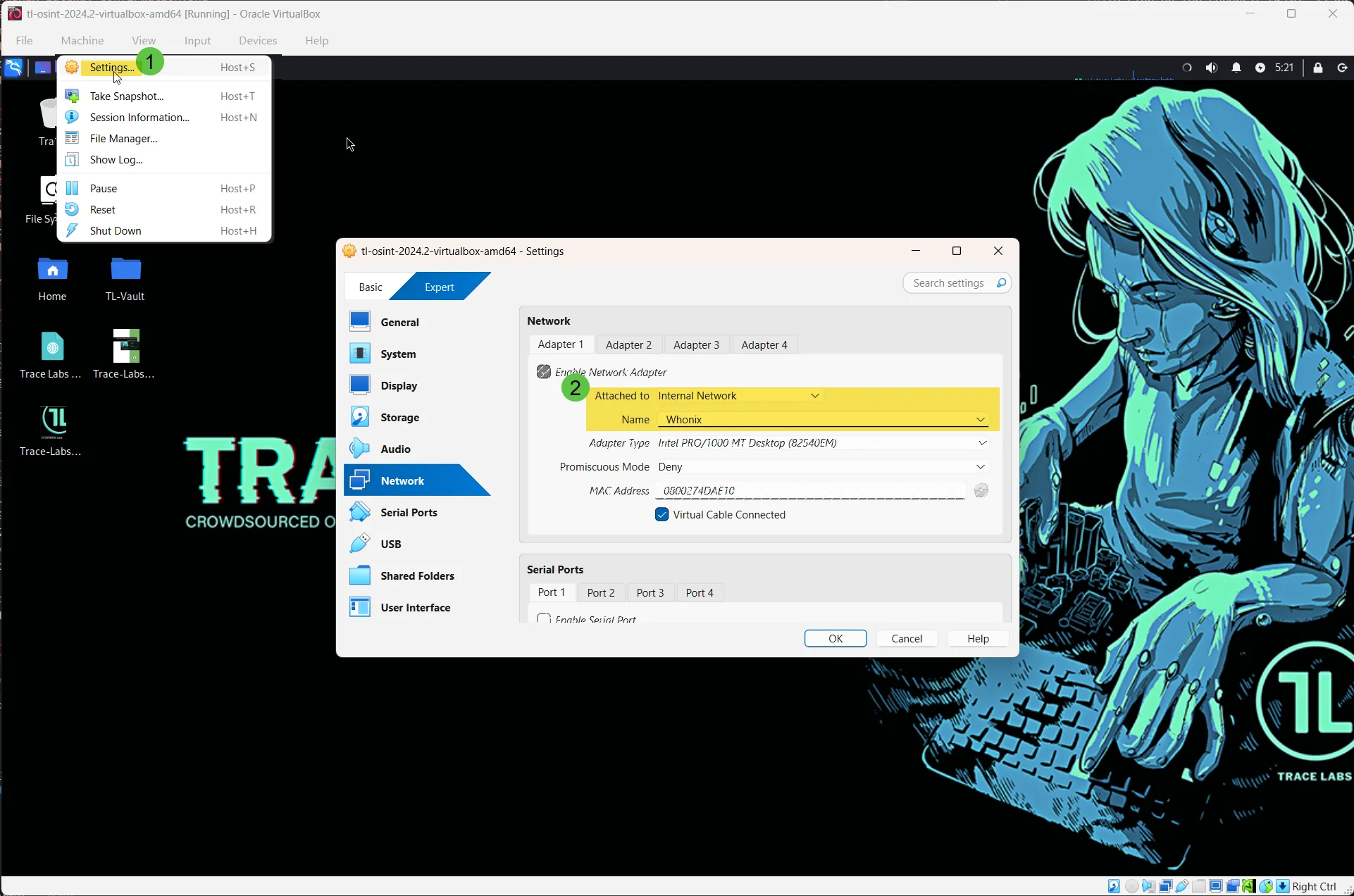
Attach the Investigation VM to the Whonix internal network
In VirtualBox → Settings → Network:
- Set Adapter 1 to Internal Network.
- Name:
Whonix(must match exactly). - Ensure no other adapter gives direct internet access.
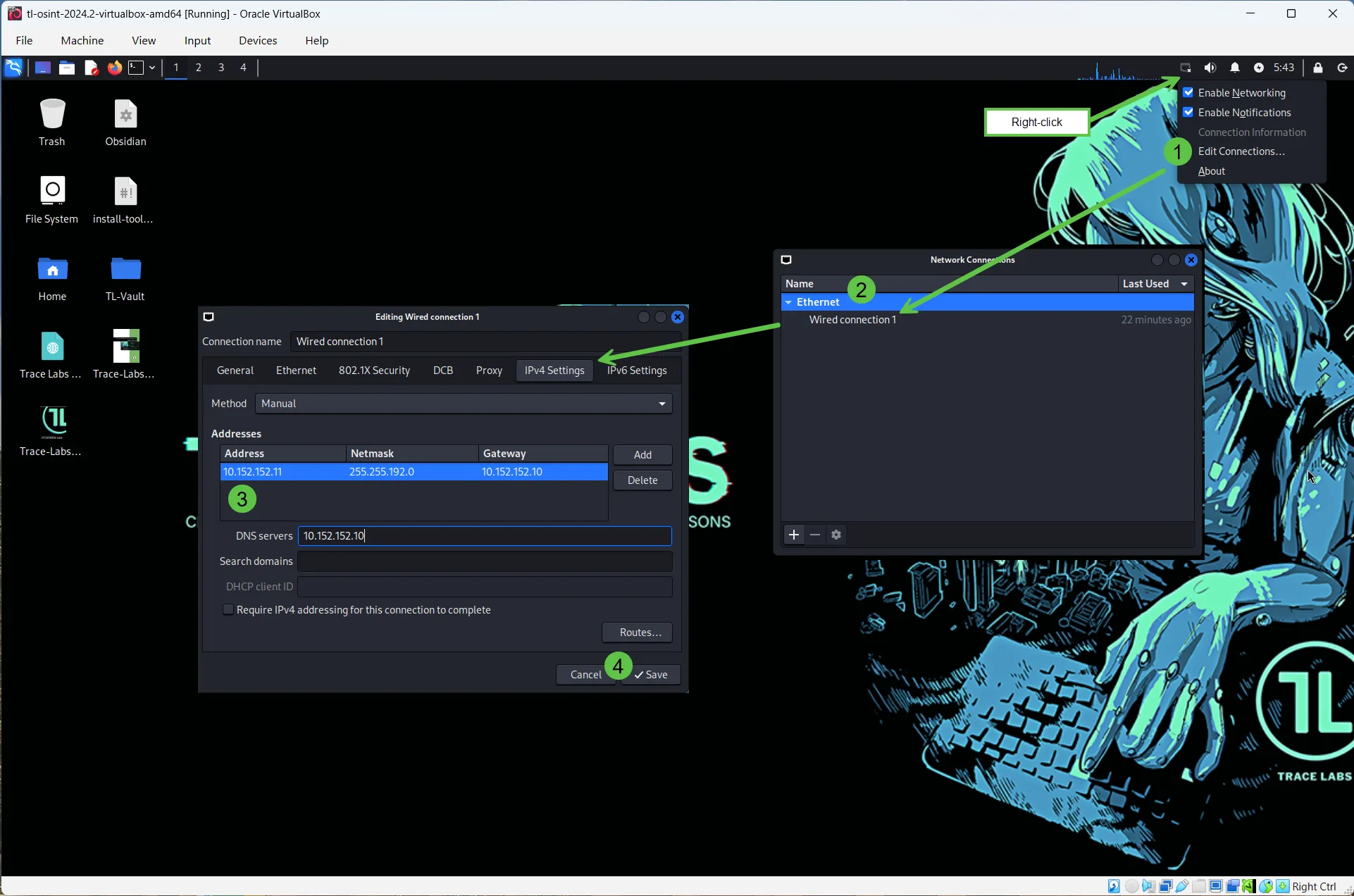
Configure a static IP inside the Investigation VM
Ubuntu example — set IPv4 Method to Manual/Static:
- IP address:
10.152.152.11 - Netmask:
255.255.192.0 - Gateway:
10.152.152.10 - DNS:
10.152.152.10
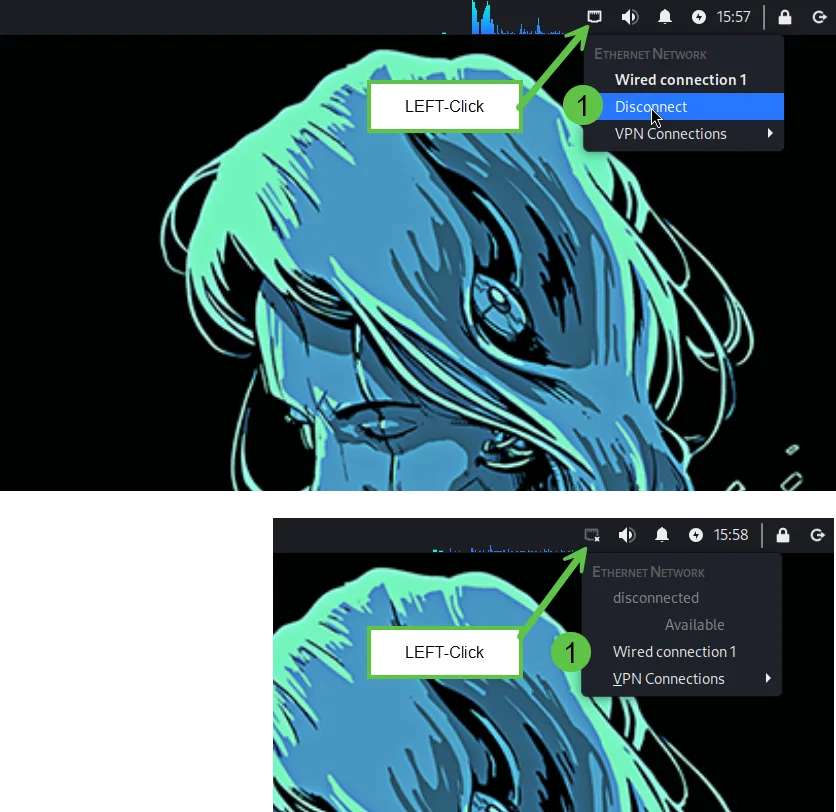
Save and toggle the network interface off/on to apply.
Google Chrome and Forensic OSINT are pre-installed
The Trace Labs OSINT VM comes with Google Chrome and the Forensic OSINT extension already installed for quick and easy access. No additional setup is needed.
If you are using your own VM instead, follow Appendix A to install Chrome and Appendix B to install the Forensic OSINT extension.
Verify Tor is active
Open check.torproject.org in Chrome. You should see confirmation that you are using Tor.
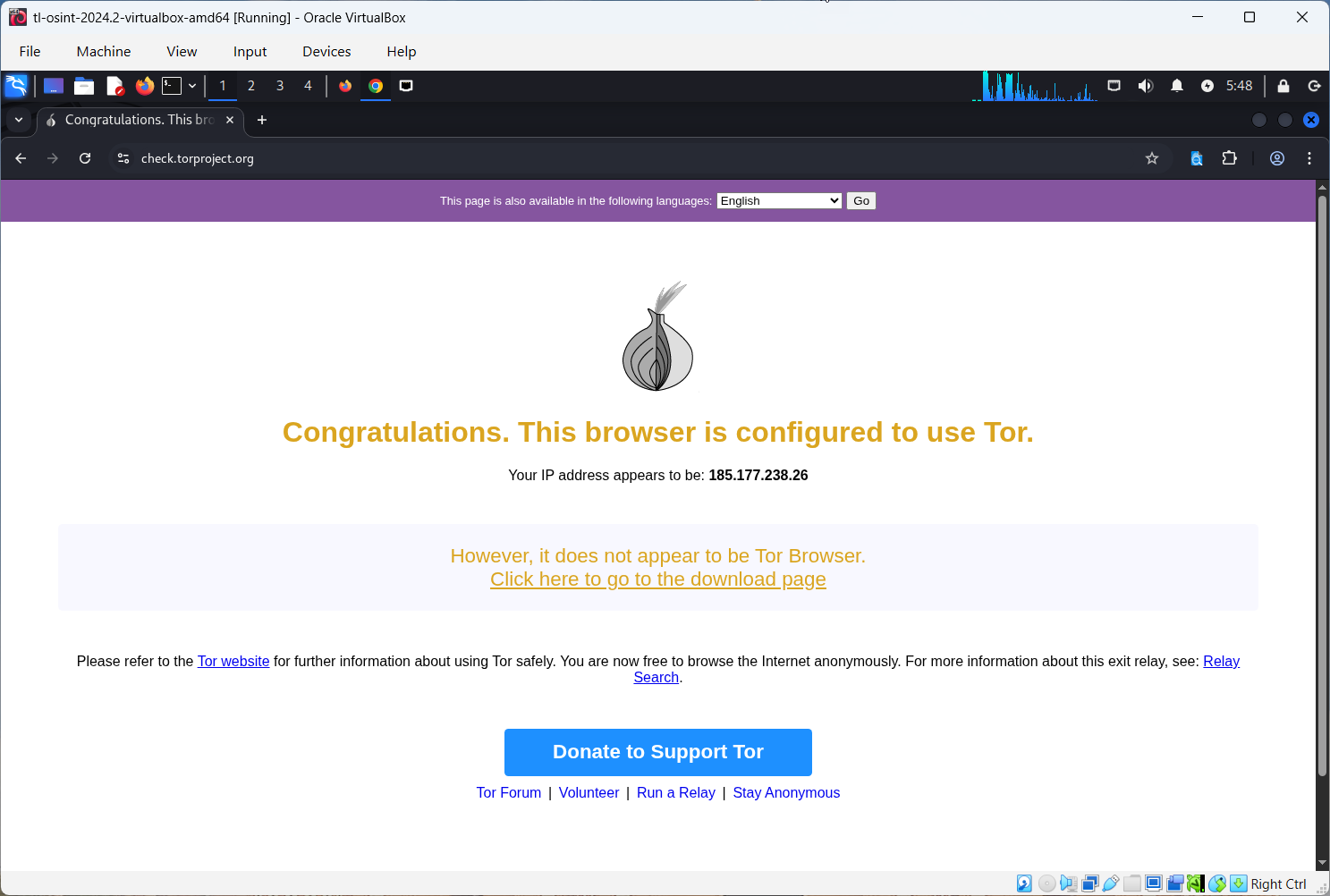
Daily use tip: Always start the Whonix Gateway first and let Tor connect, then start the Investigation VM. No proxy flags are needed in Chrome — the VM cannot reach the internet any other way, so all traffic is forced through Whonix.
Using Forensic OSINT: Shared API vs. Isolated Workflows
Shared API Mode
Connect to your Shared API in the extension settings. Captures sync automatically to your backend. Log in from another machine to download Reports and Full Disclosure Packages. Easiest method for teams.
Isolated Mode (Local-Only)
Do not connect the extension to the Shared API. All captures remain stored locally inside the Investigation VM. Export evidence manually via Full Disclosure Package or use the Import/Export feature.
This process is more time-consuming, but it is the best option for air-gapped systems or highly restricted environments where network connections are not permitted. Refer to the Export/Import support page for step-by-step instructions.
Troubleshooting
Tor check fails
- Ensure both VMs are running: Whonix Gateway and your Investigation VM.
- Investigation VM Adapter 1 should be Internal Network with Name set to
Whonix. - Double-check the static IP values:
10.152.152.11/255.255.192.0/10.152.152.10. - Wait a couple of minutes for Tor to connect inside Whonix.
- Ensure your host machine has internet access.
Cannot ping anything from the Investigation VM
- This is normal. Tor does not pass ICMP (ping).
- Use the browser to test instead.
Trace Labs login does not work
- Default credentials are
osint / osint. Change after first login.
Whonix asks for a password
- Many builds auto-login.
- If prompted, try username
userand press Enter for a blank password.
Chrome is not installed
- Follow Appendix A to install Chrome inside the Investigation VM.
- If dependencies fail, use the "fix broken" command shown there.
Security Notes
This guide reduces common leak paths by isolating your investigation inside a VM routed through Whonix, but it does not guarantee anonymity.
- Do not sign in with personal accounts.
- Treat the Investigation VM as disposable. Take snapshots and reset often.
- Always follow legal and organizational requirements.
Summary
Quick Method
Fast setup, less secure, fine for quick checks.
VM + Whonix
Stronger isolation, all traffic forced through Tor, best for real investigations.
Forensic OSINT
Works in both. Use Shared API for easy syncing or Isolated mode for maximum control.
Appendix A — Install Google Chrome in the Investigation VM
Open Terminal in the Investigation VM
Download Chrome
wget https://dl.google.com/linux/direct/google-chrome-stable_current_amd64.debInstall
sudo apt install ./google-chrome-stable_current_amd64.deb -yIf dependencies fail, run:
sudo apt --fix-broken install -y
sudo apt install ./google-chrome-stable_current_amd64.deb -yLaunch Chrome
google-chrome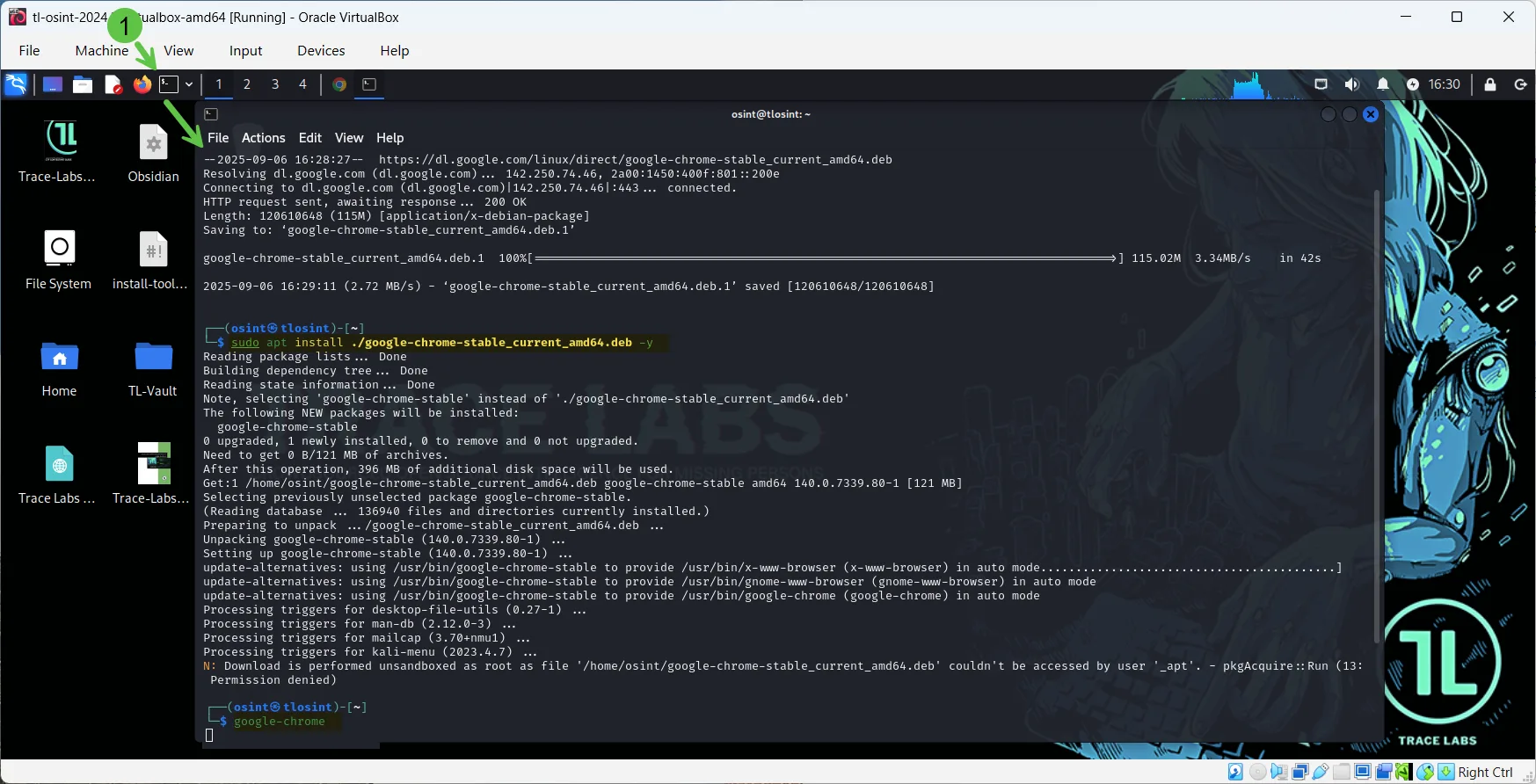
Appendix B — Install the Forensic OSINT Extension
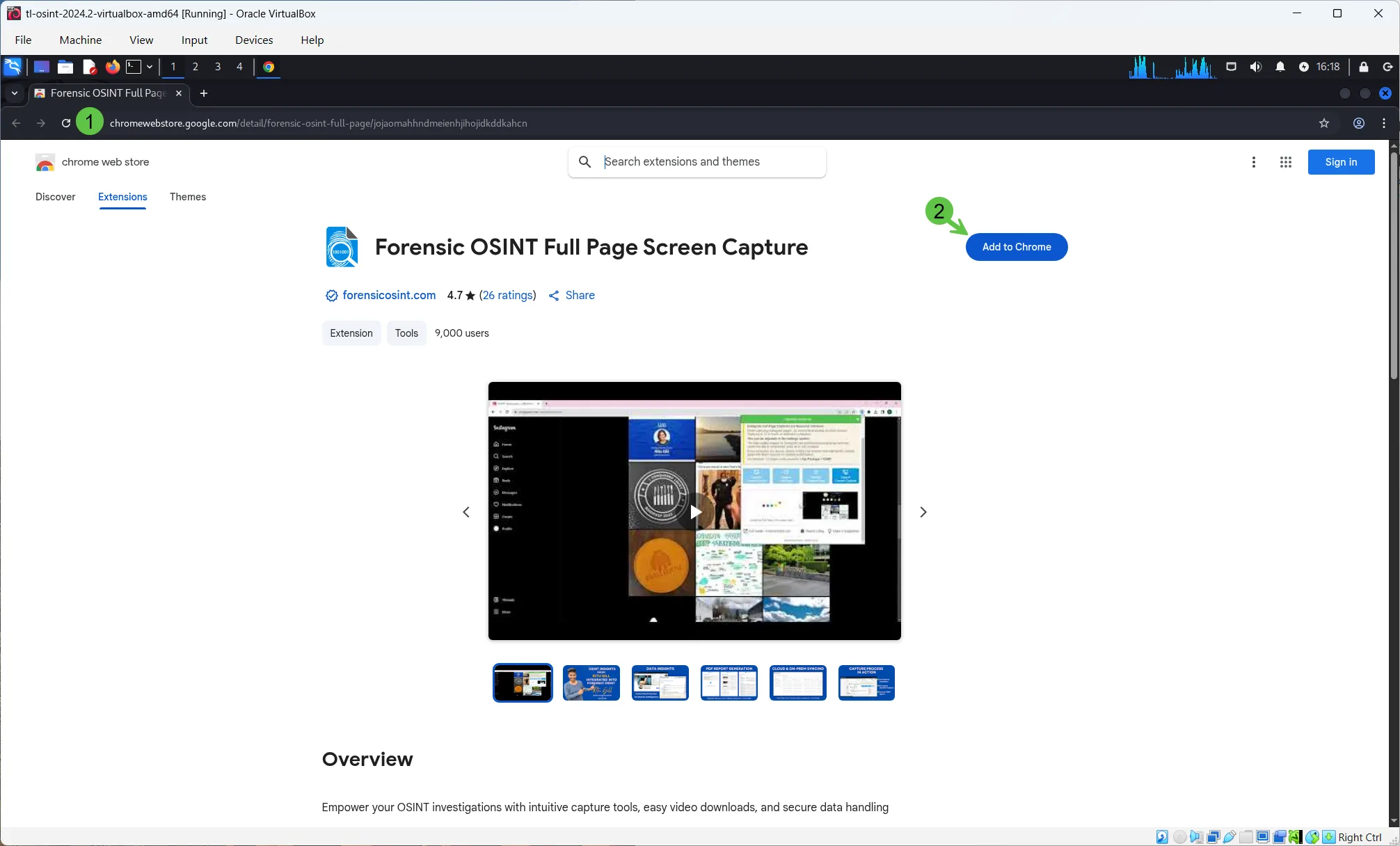
- Open Google Chrome.
- Go to the Chrome Web Store.
- Search for "Forensic OSINT".
- Click "Add to Chrome" → "Add extension".
- Confirm the extension icon appears in the toolbar.
Appendix C — Verify Tor Routing
- Ensure the Whonix Gateway is running and connected to Tor.
- On the Investigation VM, open Chrome.
- Visit check.torproject.org.
- You should see a success message confirming Tor usage.