
This guide is for Community Edition (Free) users or those on systems that cannot connect to a backend to generate PDFs (e.g., offline or air-gapped environments).
To generate a PDF Report, follow the steps below. The process covers downloading your capture, extracting the zip contents, and generating professional court-ready PDF reports.
Download Your Capture
Download your capture
Click the download button to begin downloading your capture files.
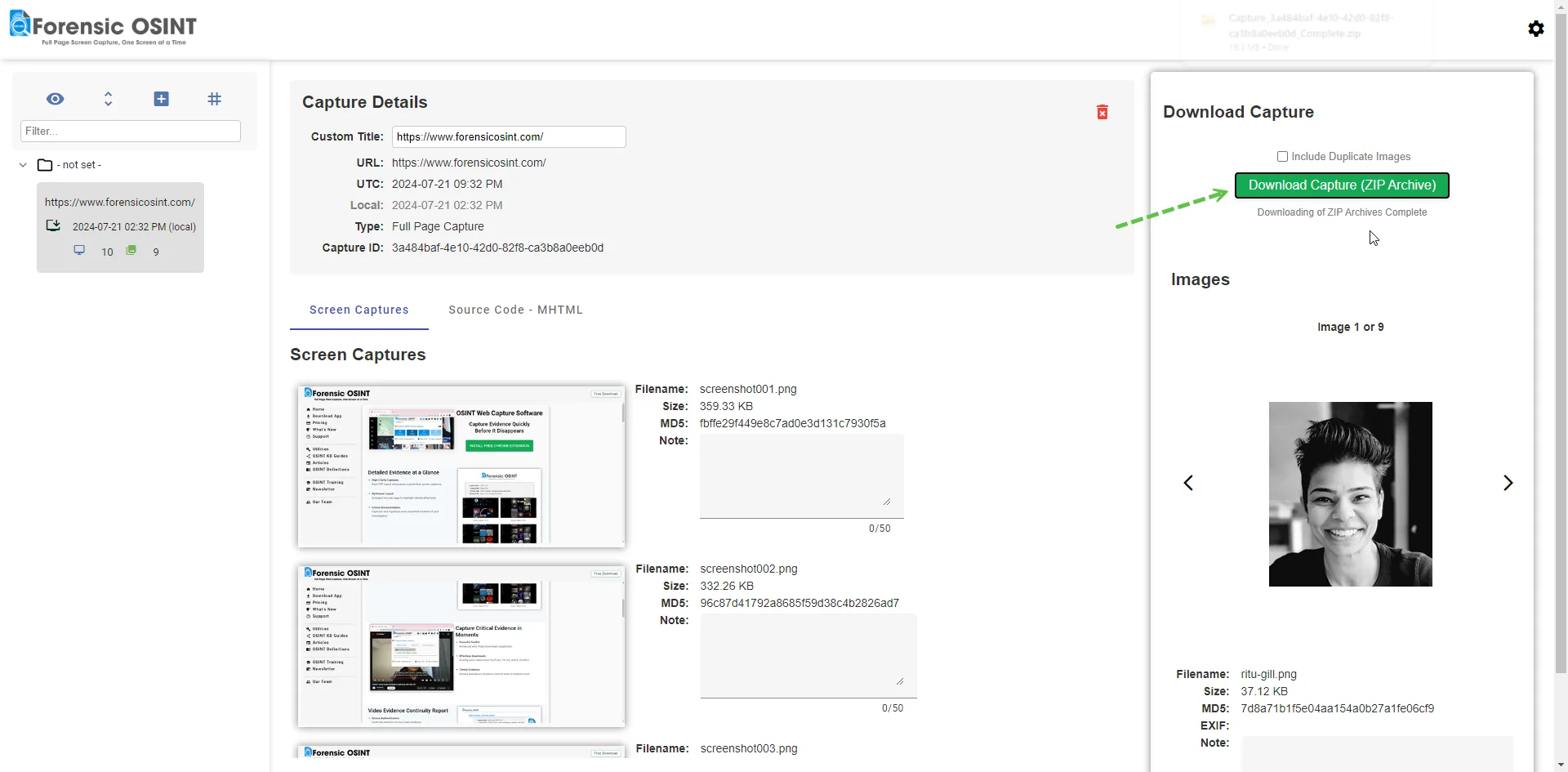
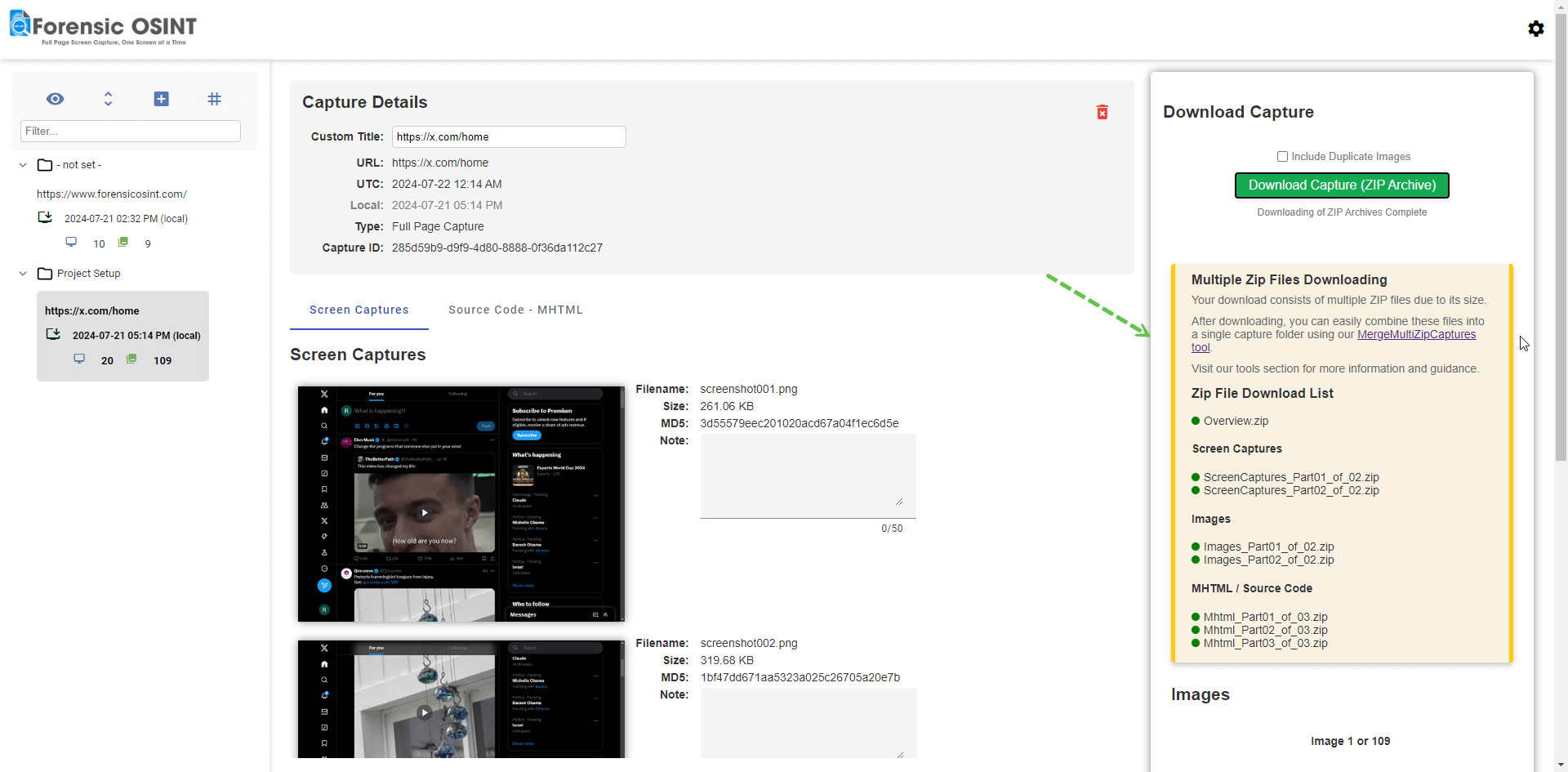
Check your downloads
Depending on the size of your capture, this will result in a single zip download or multiple zip files.
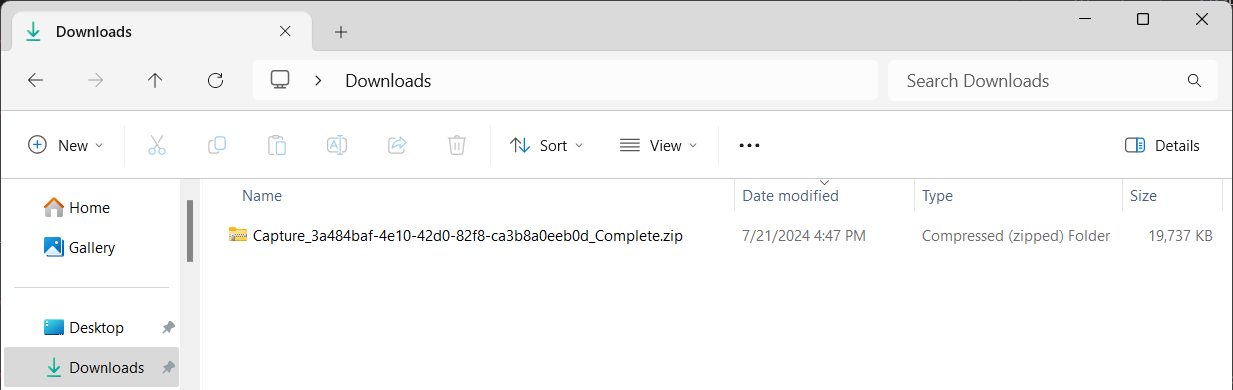
Go to your Downloads folder
Navigate to your Downloads folder to locate the zip files.
Extracting Zip Contents
You have two options for extracting files from the zip archives:
Option A: Manual Extraction
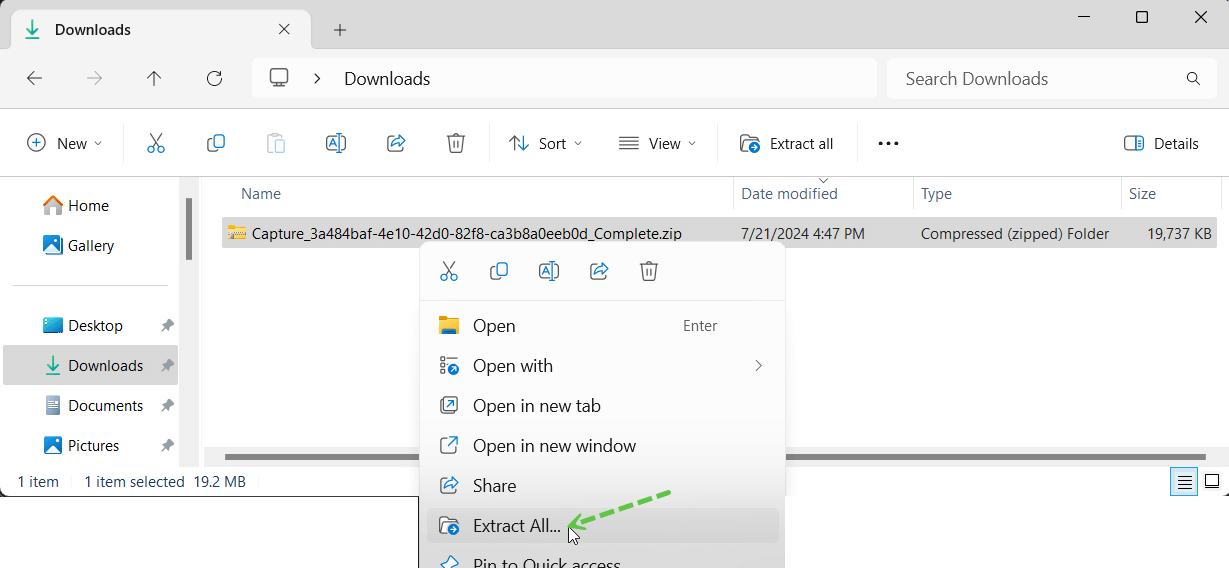
Extract All
Right-click on the zip archive and select "Extract All".
Select destination folder
Select a new folder for the extracted contents.
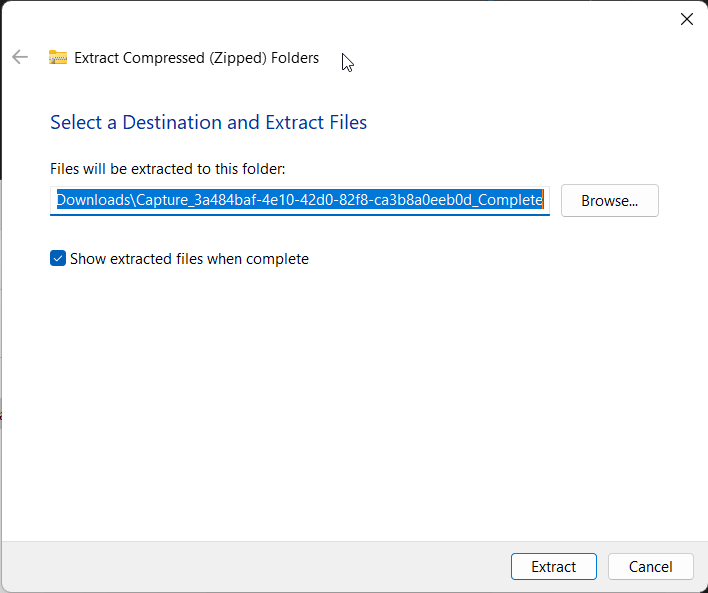
NOTE: If you have multiple zip archives for the same capture, extract all contents into the same folder.
Option B: Automated via Zip Extraction Program
Download the extraction utility
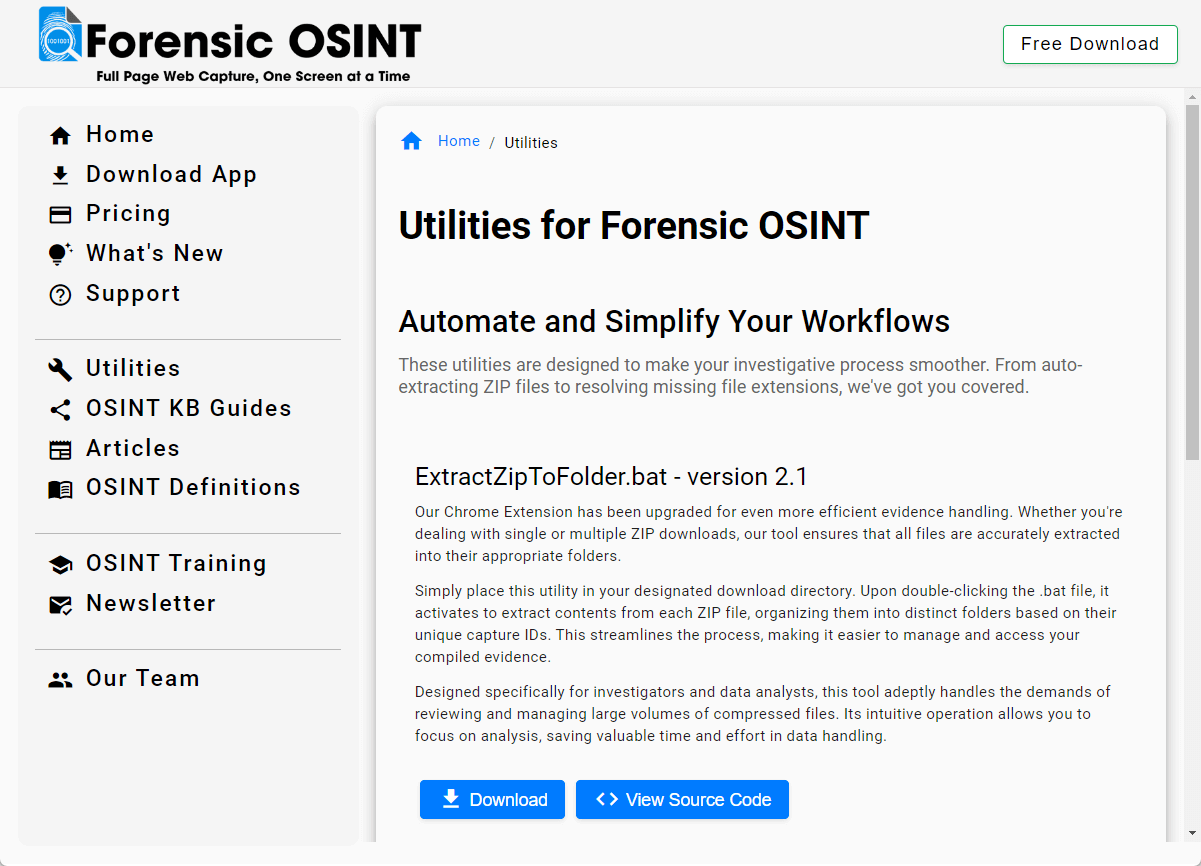
Download the "ExtractZipToFolder.bat" program from Forensic OSINT Utilities and place it in the same folder as your zip archives.
Run the extraction program
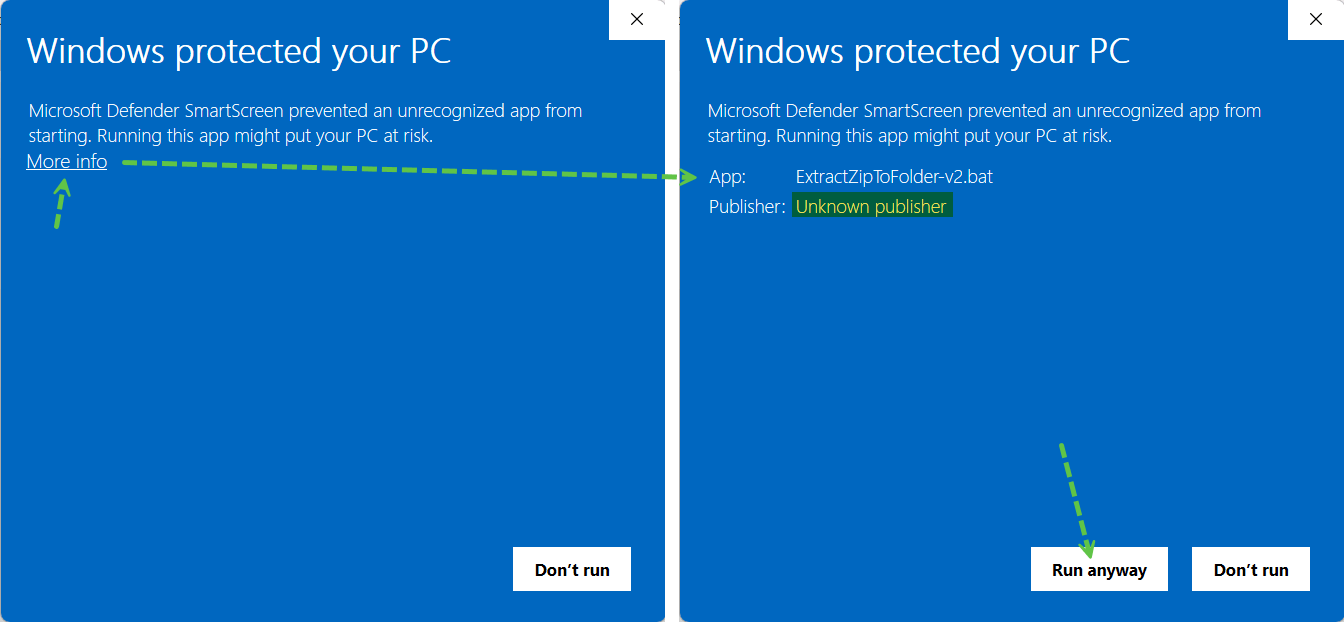
Double-click the .bat program. A warning message will appear. If unsure, refer to the section below about this message.
Allow the program to run
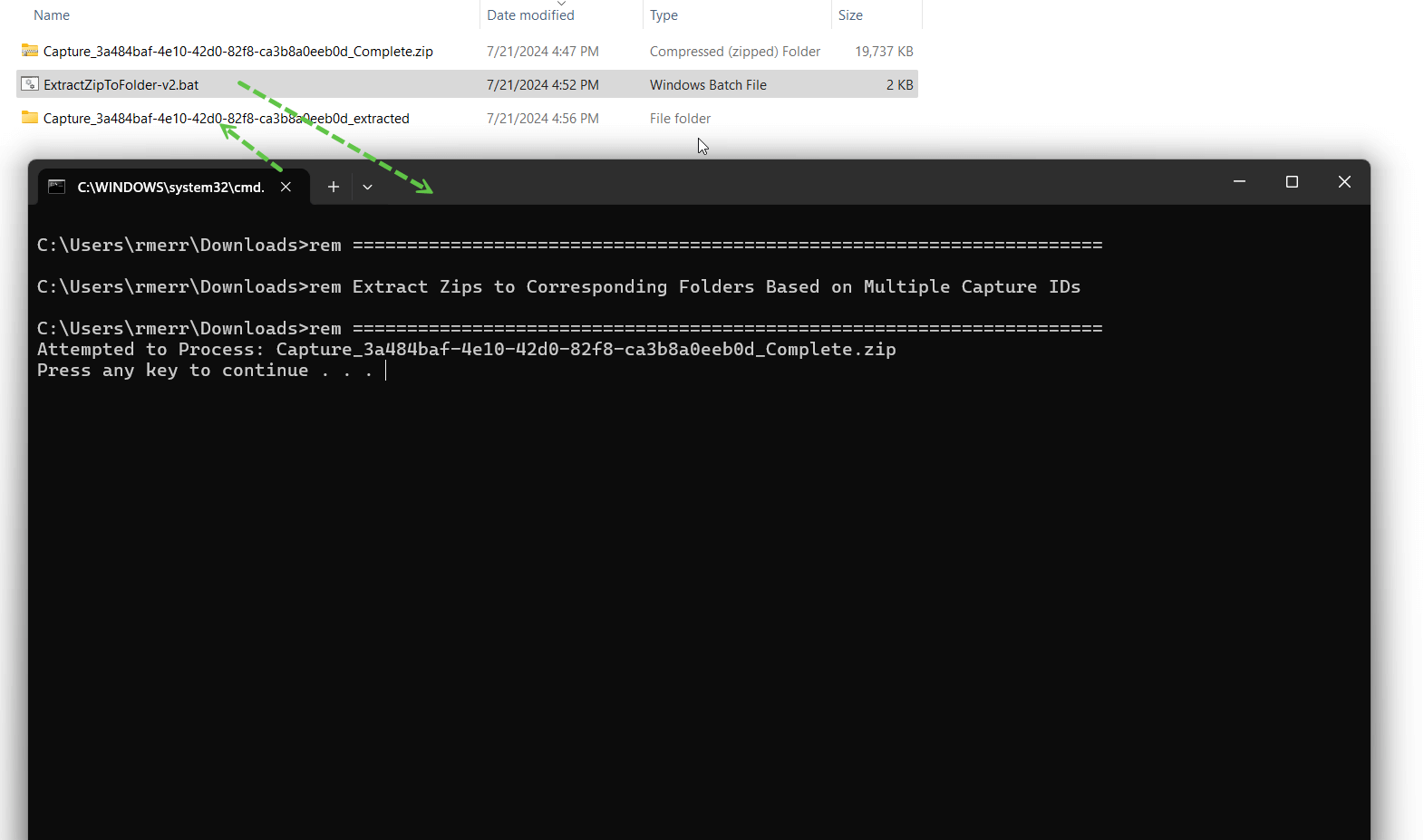
Click "More info" and then "Run anyway". The program will extract the contents as required.
Locate the extracted folder
A new folder will be generated with "_extracted" at the end. All contents of your zip archive will be extracted into this folder.
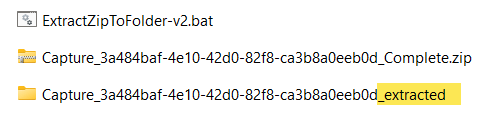
Open the extracted folder
Open this new folder to view the extracted contents.
Warning Message
If you use the Zip Extraction Program, a blue warning window will appear. This is normal. .bat files can be dangerous if you do not know who developed them. Verify the code is safe before use. Here's how to inspect the file:
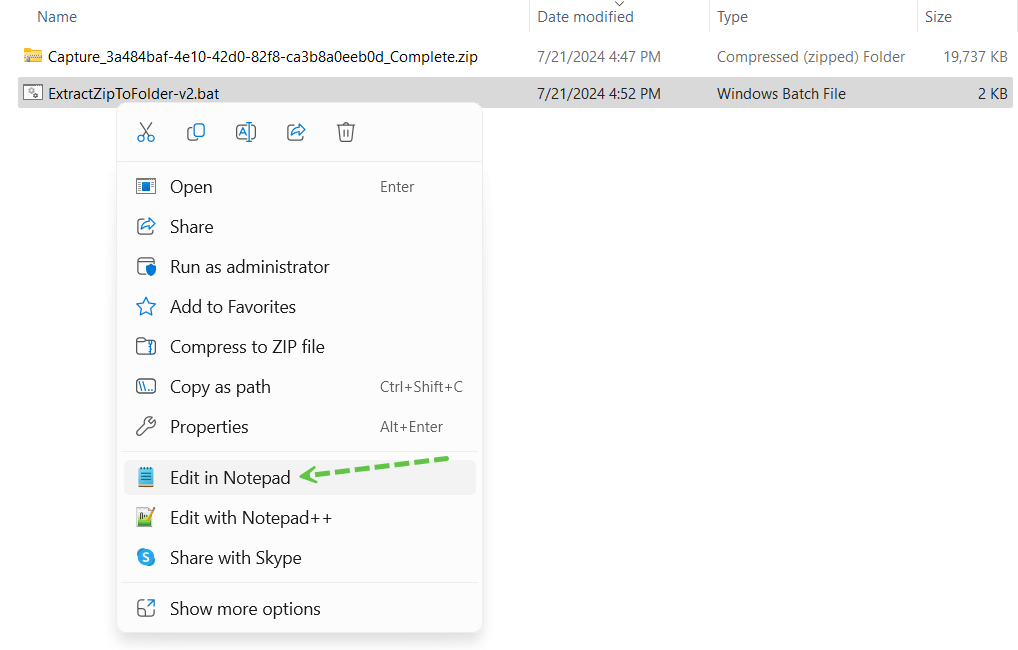
Open in Notepad
Right-click on the .bat file and select "Edit in Notepad".
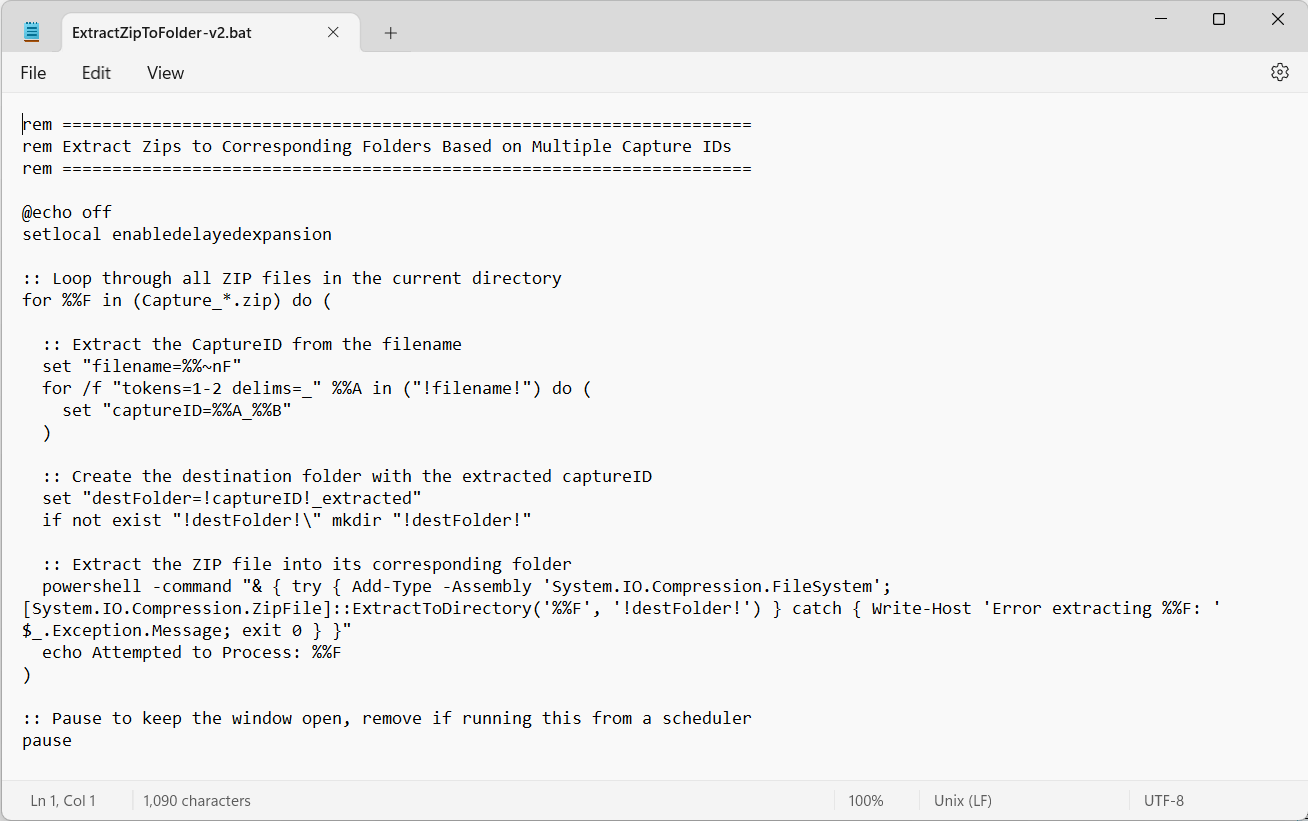
Review the code
Review the code to ensure it does not delete or modify data outside the zip files. If unsure, consult someone knowledgeable in programming.
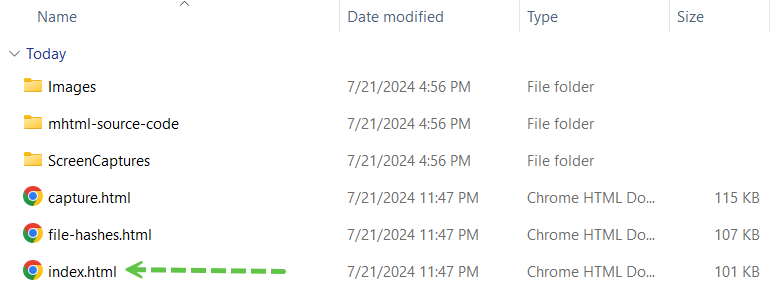
Generate Final PDF Reports
In the 'extracted' folder, you will see three different HTML files. The index.html file is the main file that links to the other files. Depending on your requirements, you can either provide this entire folder to your client or the courts, allowing them to click through the evidence, or generate PDF reports.
Open index.html
Double-click on index.html.
Open Print dialog
Right-click on the page or select "print" from the menu.
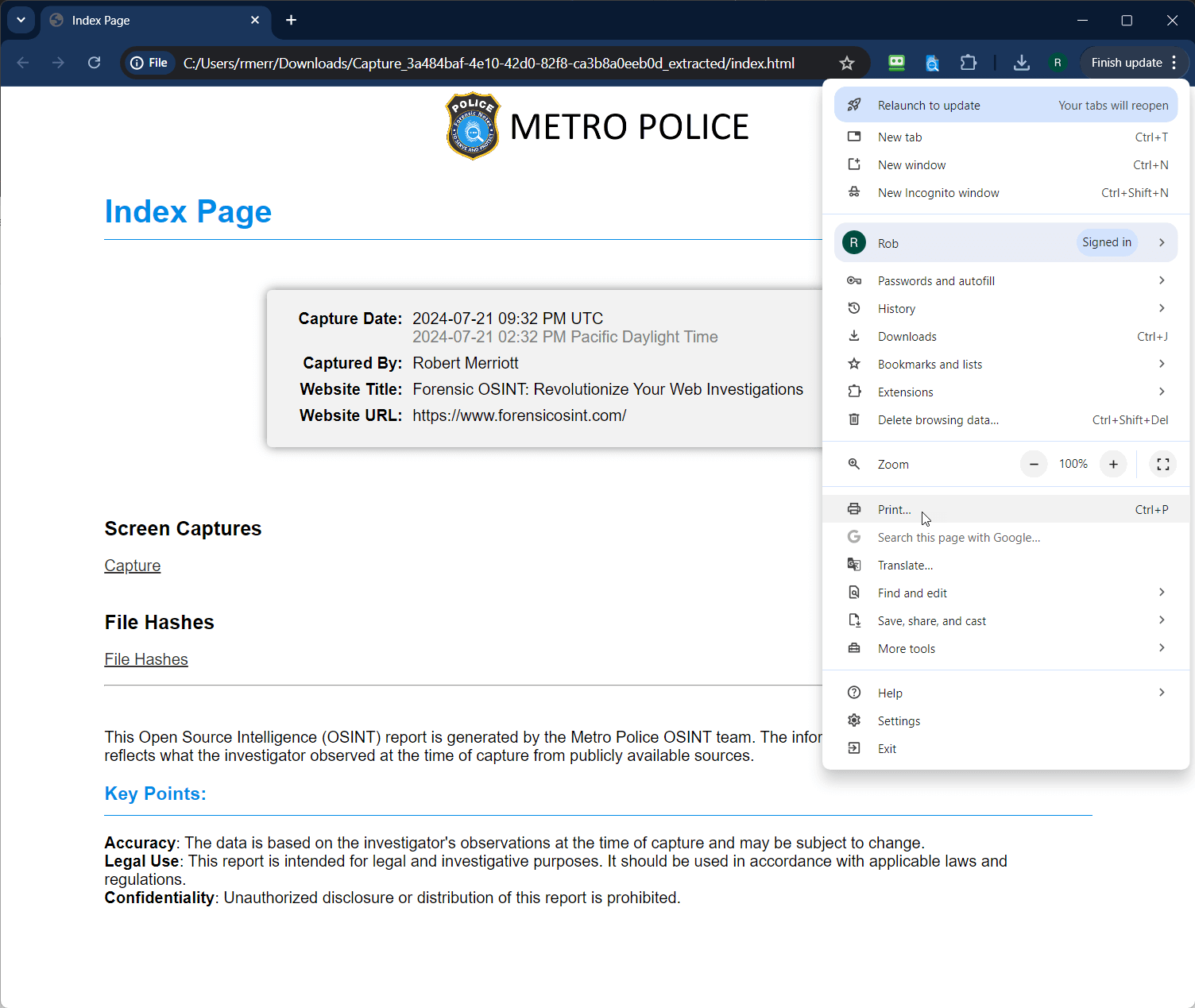
Save as PDF
Set the destination to "Save as PDF" and click "Save".
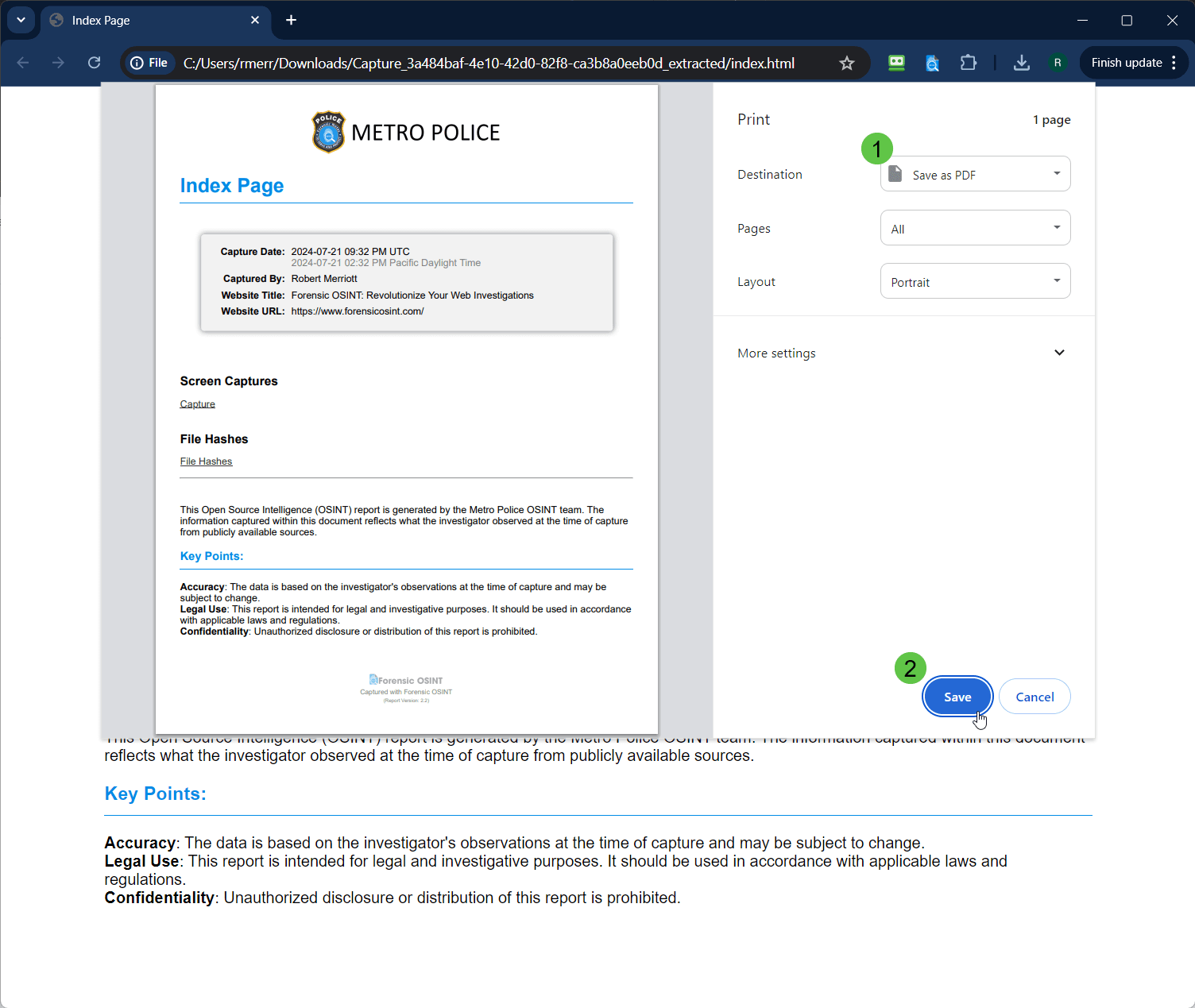
Save and navigate to Captures
Save this PDF file in your 'extracted' folder. Then go back to the index.html file and click on "Captures" to open the Captures page.
Print the Captures page
Repeat the print-to-PDF steps for the Captures page.
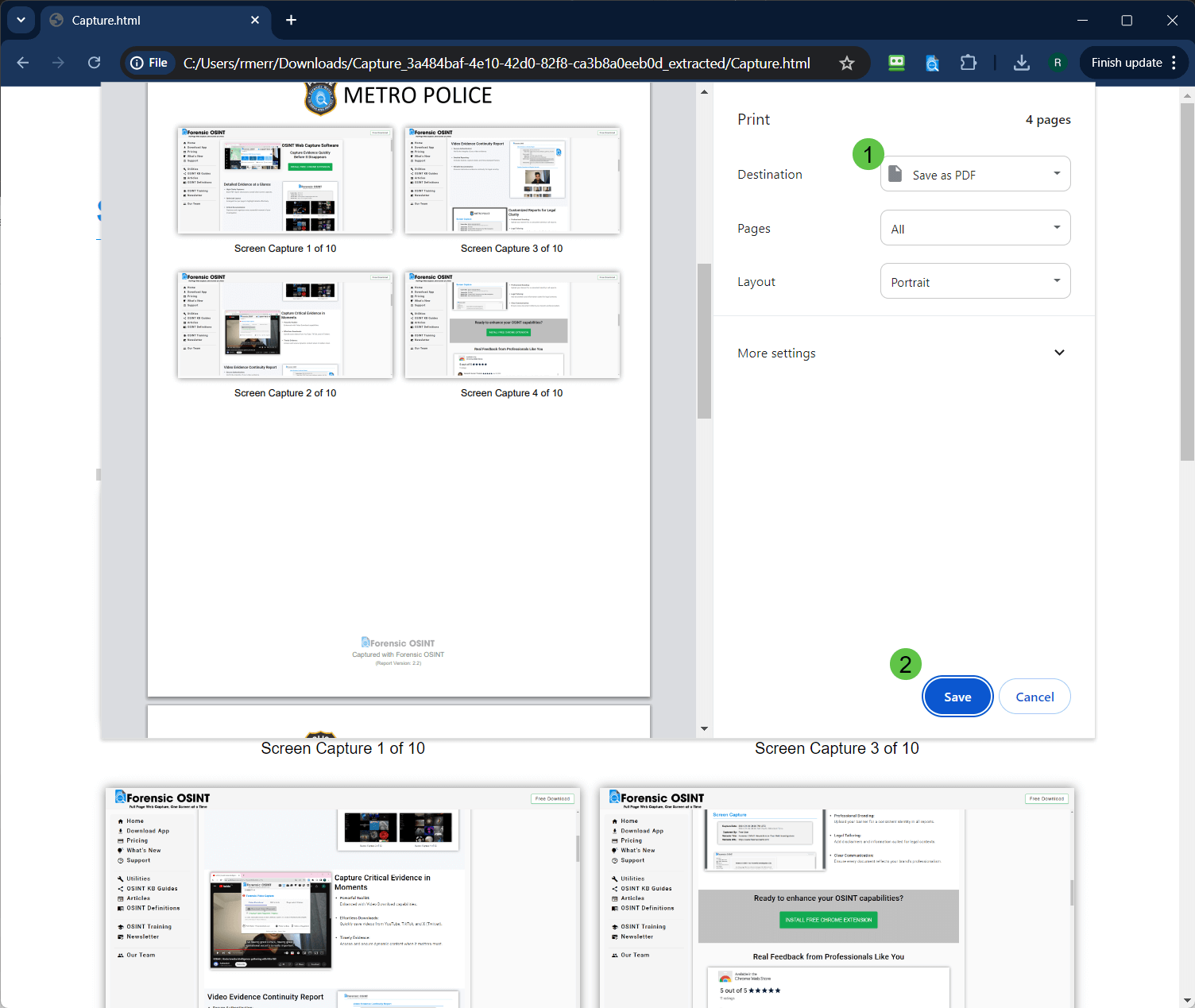
Print the Hashes page
Go back to the Index page and select the Hashes page. Repeat the print-to-PDF steps for the Hashes page.
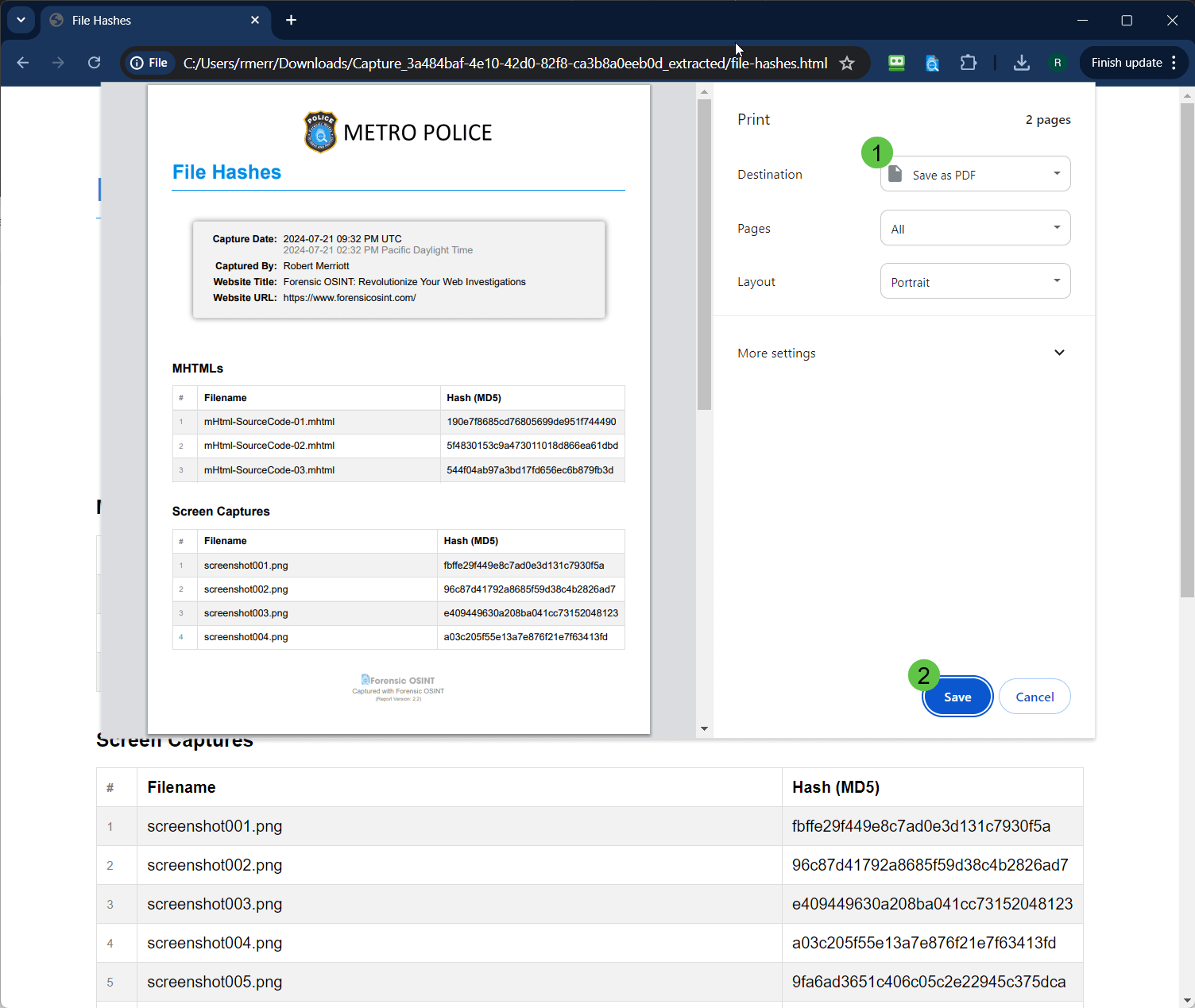
Final PDF reports ready
You should now have three new PDFs in your 'captures' folder. These are your final professional reports ready for court purposes.
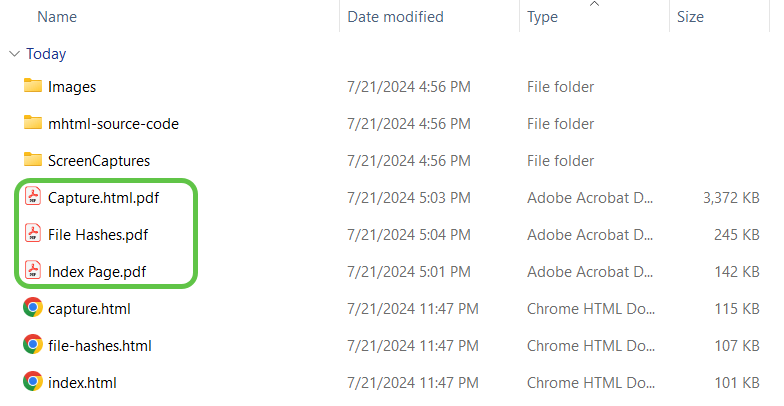
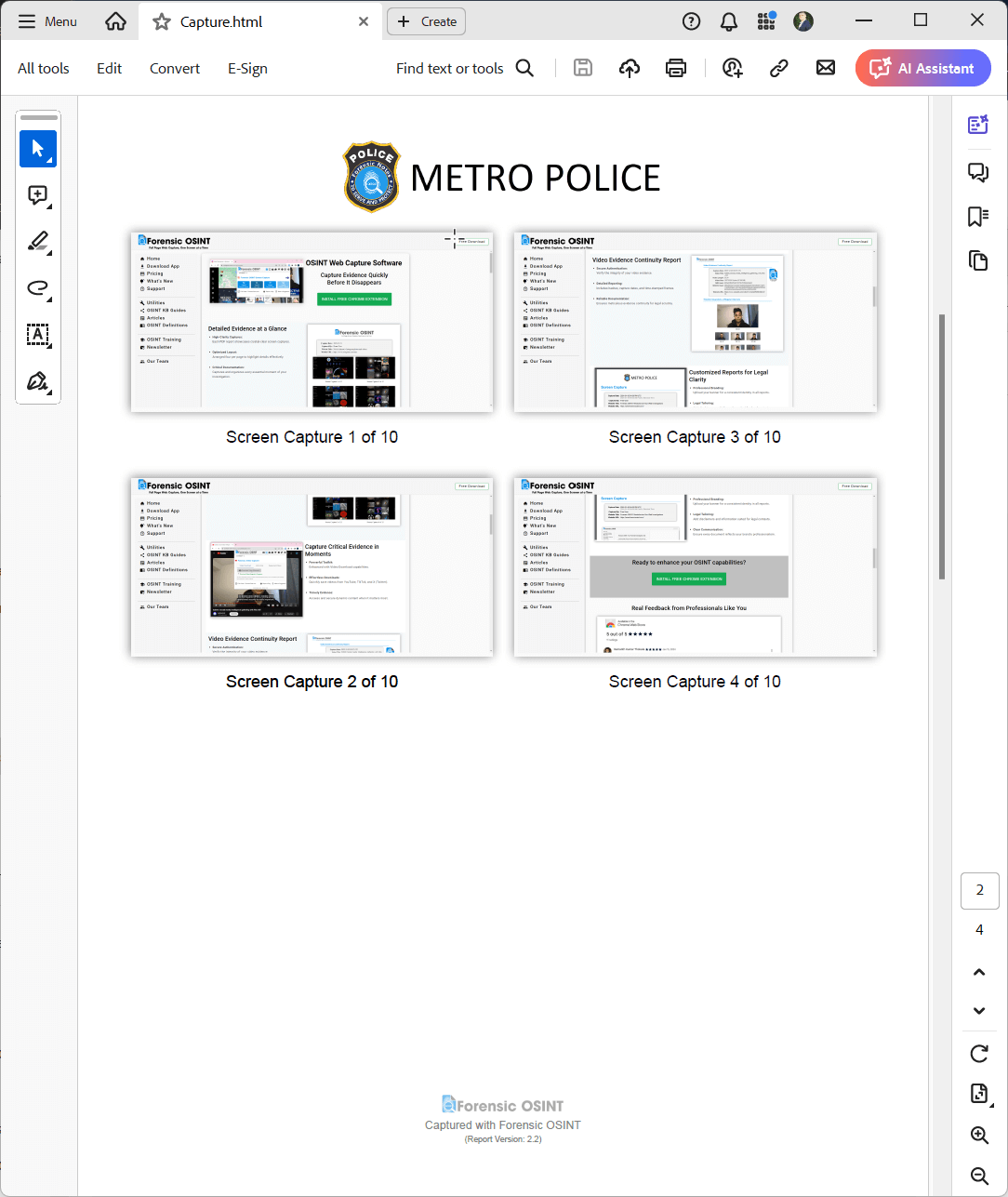
Example Final Report
Below is an example of a completed final PDF report:
The above steps may seem complicated, but once you do it a couple of times, the process will be quick, allowing you to create professional OSINT reports with ease. We will soon provide a push-button solution for paying subscribers.