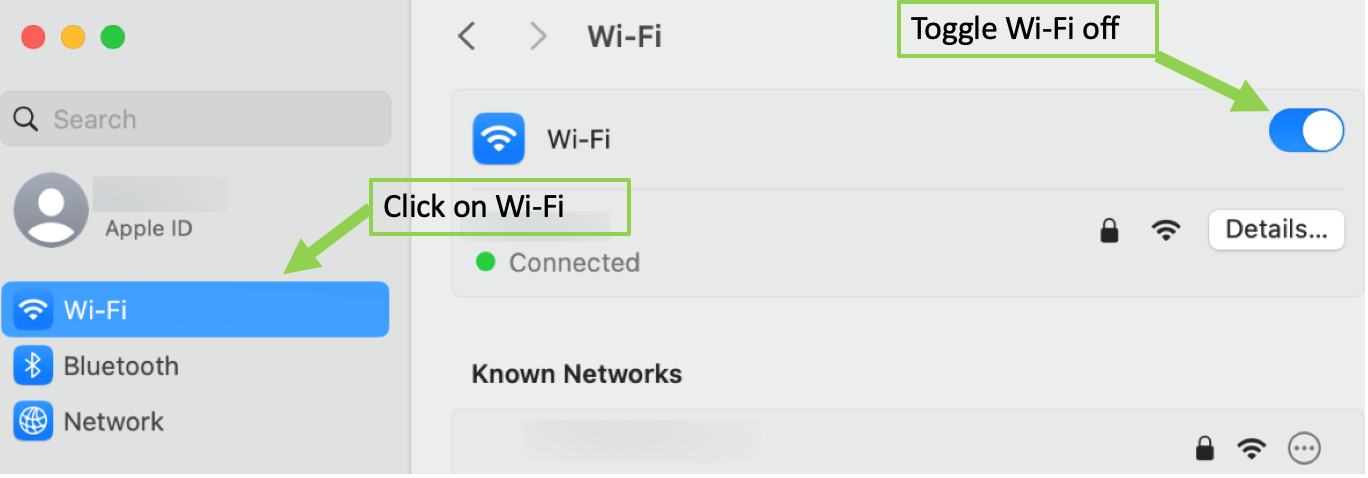
Disconnecting your network before reviewing captured evidence helps prevent accidental data leakage and ensures the integrity of your investigation. Follow the steps below for your operating system.
Windows 11
1
Open Advanced Network Settings
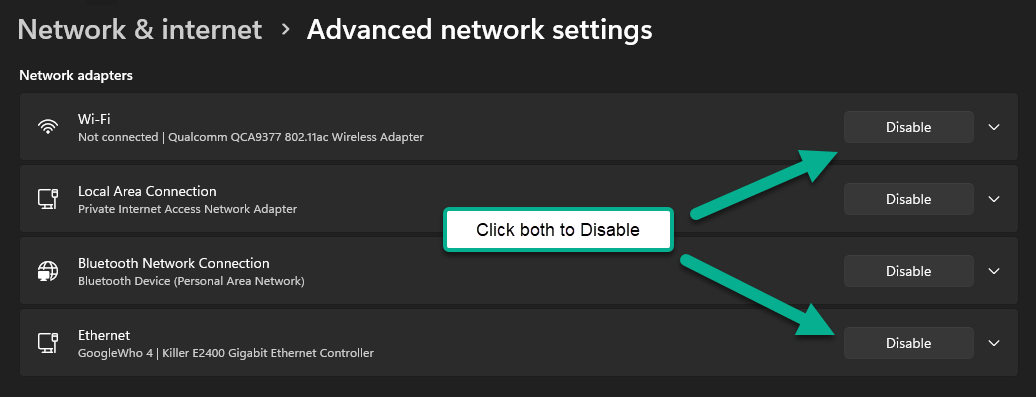
Go to "Network & Internet > Advanced Network Settings".
2
Disable Wi-Fi and Ethernet
Click "Disable" on both "Wi-Fi" and "Ethernet".
3
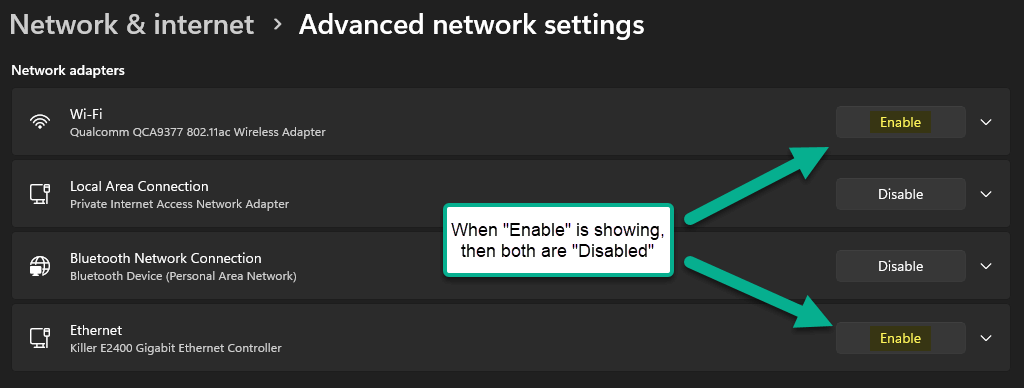
Verify disconnection
Confirm that your network is disconnected by checking the network icon in your taskbar.
MacOS
1
Open System Settings
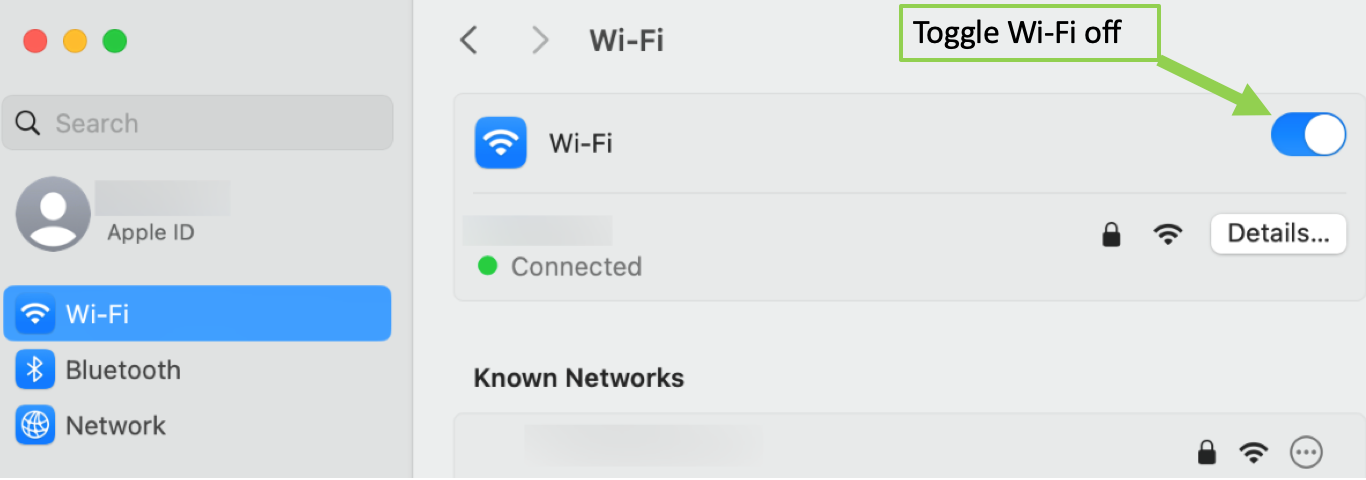
Choose Apple menu > System Settings, then click Wi-Fi in the sidebar.
2
View network details
Click Details next to the network you're currently using.
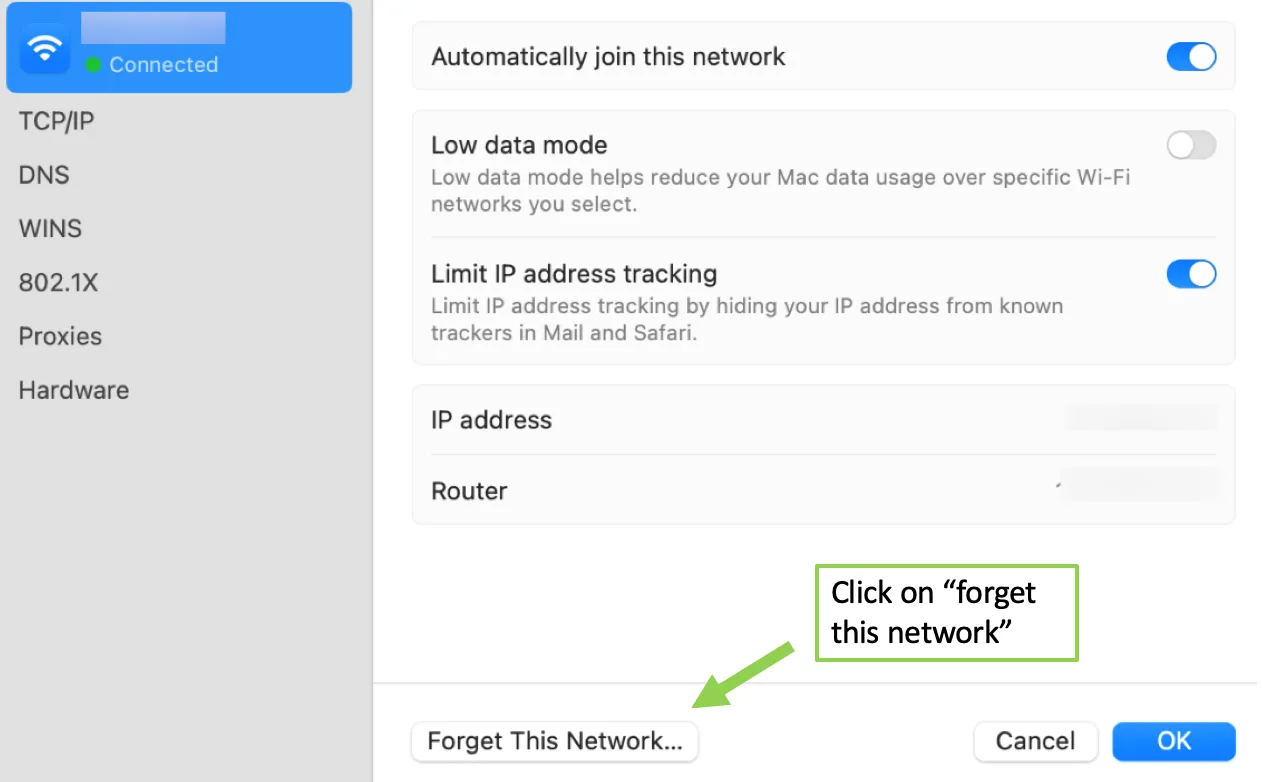
3
Forget or toggle off the network
Click Forget This Network, then click Remove to confirm.
Alternatively, you can click Wi-Fi in the sidebar and toggle the Wi-Fi switch off.