
When you need to preserve a video as evidence, the Forensic OSINT Video Downloader should always be your first choice. It covers the major platforms — TikTok, Facebook, Instagram, YouTube, Internet Archive — and every download ships with a signed, timestamped, hashed Evidence Continuity Report. There are plenty of other sites it doesn't cover. For those, this guide walks through a manual Chrome DevTools approach that may work, depending on how the site serves video, plus the extra steps required to keep a manually captured file defensible.
Use the Forensic OSINT Video Downloader First
If the platform you're working with is one of the major ones, you don't need this guide — you need the FO Video Downloader. It does everything below in one click, plus generates the chain-of-custody documentation automatically.
Currently supported: TikTok, Facebook, Instagram, YouTube, Internet Archive, and a growing list of other platforms. The fastest way to check a specific site is to install the extension and try it — if the platform is supported, the download button appears right in the post.
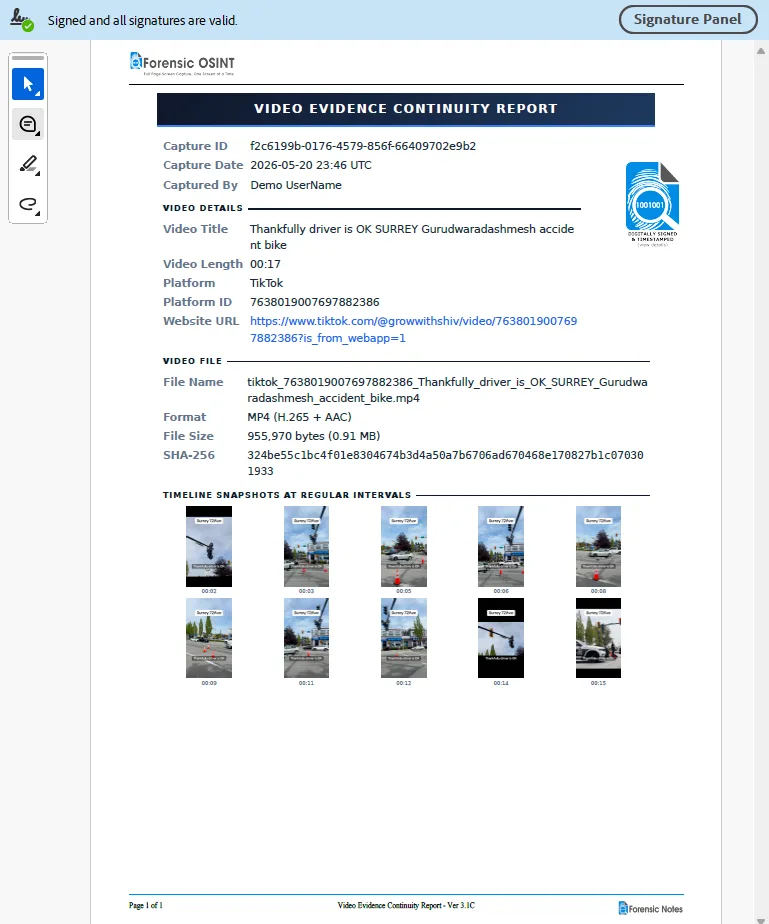
Every download includes:
- Who captured it — identity, date, and time.
- Full source URL and platform metadata.
- SHA-256 hash of the downloaded video file.
- Ten evenly-spaced screen captures from the video as a visual reference.
- Trusted timestamp anchoring the exact moment of capture.
- Digital signature on the report itself.
That's everything an investigation needs to establish authenticity and chain of custody — generated automatically, on every capture. See How to Download Videos with Forensic OSINT for the full walkthrough.
When to Fall Back to the Manual Method
The rest of this guide is the fallback for sites the FO Video Downloader doesn't cover — and there are plenty of them. Use the manual DevTools method when:
- The site isn't supported by the FO Video Downloader (Threads, a niche regional site, an obscure forum, an internal portal).
- You need the file now and can't wait for platform support to ship.
- You're willing to do the chain-of-custody work by hand — hashing, screenshots, contemporaneous notes — because the manual method won't do it for you.
The manual method doesn't always work either. Some sites deliberately obscure how their video is served — segmented HLS or DASH streams, blob URLs, encrypted media (DRM), tokenized URLs that expire in seconds, or video stitched together client-side. When a site does any of those, no single .mp4 will show up in the Network panel, and the manual method fails. The only way to know whether a given site is one of those is to try it and see.
Heads up: if you hit a site we don't support, let us know. New platform support is prioritized based on what subscribers actually need — the more requests for a given site, the sooner it ships.
Prerequisites
What you'll need
- Google Chrome (or any Chromium-based browser — Brave, Edge).
- The URL of the page containing the video.
- About 20 seconds.
- No extensions, no installers, no third-party sites.
The 7-Step Manual Workflow
This is the technique. It works on sites that stream video as a single .mp4 file. It will not work on sites that stream segmented HLS or DASH, use blob URLs, encrypt media with DRM, or otherwise hide the underlying file — in those cases no .mp4 request appears in step 5, and the method falls apart. Try it and see.
Open the post in Chrome
Navigate to the page containing the video you want to download. Let the video appear, but don't worry about playing it yet.
Open Developer Tools
Click the three-dot Chrome menu in the top right → More tools → Developer tools. Or just press F12 (Windows) or Cmd + Option + I (Mac).
Go to the Network tab and filter to Media
In the DevTools panel that appears, click the Network tab at the top. Then click the Media filter button in the row of filters below it. This narrows the captured traffic to just video and audio files.
Reload the page
Press Ctrl + R (or Cmd + R on Mac) to reload. This step is essential — the Network tab only captures requests made after it's open, so reloading forces the browser to request the video again with DevTools watching.
Find the .mp4 file
After the page reloads, look for a single .mp4 file (sometimes a few) in the Network panel. That's the underlying video asset.
If nothing shows up — or you see .m3u8, .ts, .mpd, or blob: URLs instead of a plain .mp4 — the site is streaming segmented or encrypted video. The manual method stops here for sites like that. There's no single file to save.
Open the file in a new tab
Click the file name to inspect it, then right-click the request and choose Open in new tab. The raw video will load directly in a fresh tab with the browser's native video player.
Save the video
Right-click the video in that new tab and choose Save video as…. Pick a destination, give it a clear filename, and you're done.
Tip: If the right-click menu is suppressed by the page, the .mp4 URL itself can be copied from the Network tab and pasted into a new tab to get a clean Save dialog.
The Important Caveat
What you now have is a video file. That's it.
You don't have:
- A chain of custody.
- A trusted timestamp.
- A cryptographic hash proving the file hasn't changed since capture.
- Proof of which URL it came from or when.
- Any record of who captured it, in what environment, or for what reason.
For personal use — saving a clip for your own reference — that's fine. For an investigation, journalism, internal HR review, or anything that may be challenged later, it's not enough.
Making It Defensible
If you have to use the manual method, the file alone is the starting point, not the finish line. The following steps are what investigators do to make a manually captured file hold up.
Hash the file immediately (SHA-256)
Generate a SHA-256 hash of the file the moment it lands on disk. This fingerprint is what proves later that the file hasn't been modified since you captured it.
Recommended: use the free Forensic Hash Calculator. Drop the video onto the page and it returns SHA-256 (plus MD5, SHA-1, and others) in your browser — nothing leaves your machine, no install required.
If you'd rather use the command line, both work:
- Windows (PowerShell):
Get-FileHash video.mp4 - macOS / Linux:
shasum -a 256 video.mp4
Record the hash value in your notes. If anyone ever needs to verify the file is unchanged, they re-generate the hash and compare.
Document contemporaneously
Write your notes as you go, not after the fact. Capture, at minimum:
- Full source URL of the page containing the video.
- Date and time of capture — with the timezone.
- Username or account that posted the video.
- Post ID, video ID, or any unique platform identifier.
- View count, like count, or any other context visible at the moment of capture.
Recommended: use Forensic Notes. Every entry is timestamped, hashed, and digitally signed the moment you write it — which is what makes the notes contemporaneous in a legal sense. A typed Word doc you saved at the end of the week doesn't have that. Forensic Notes is also included in the FO Elite plan.
Screenshot the evidence trail
Take screenshots that show how you obtained the file, not just what you obtained. At minimum:
- The page with the video playing, URL bar visible.
- The DevTools Network panel showing the
.mp4request. - The source URL of the
.mp4itself.
These screenshots are what tie the file to its origin.
Note your environment
Record the technical context of the capture:
- Browser name and exact version.
- Operating system and version.
- Your name (the person who performed the capture).
- Reason for capture — case number, investigation reference, or matter ID.
Preserve the original untouched
The original file you downloaded is the evidence. Never edit it or transcode it after hashing — either changes the bytes and the hash will no longer match. (Renaming or moving the file is fine; the hash is computed from the file's contents, not its path.) Work from copies for analysis, sharing, or markup, and keep the original in a write-protected location.
Done correctly, these five steps give you a defensible record: a file you can prove came from a specific URL at a specific time, captured by a specific person, and unchanged since.
Why This Is Error-Prone
The manual workflow is short, but it has a lot of places to slip:
- Hash drift. If the file is opened in some media players, certain players write back to the file's metadata. The hash you recorded no longer matches.
- Forgotten timezone. "Captured at 14:32" is meaningless without the zone. Servers may log requests in UTC; your local clock may be PST. Mismatches surface months later in disclosure.
- Missing screenshots. Without a screenshot of the Network panel showing the source URL, the file's provenance is hard to defend.
- Edited copies. Editing the only copy — trimming, renaming, re-exporting — destroys the integrity proof.
- Lost context. The page often changes minutes after capture. Comments get deleted, accounts go private, posts are removed. If you didn't preserve the surrounding context at the time, it's gone.
Each of those is recoverable if you catch it during the capture. Each becomes a problem if it's noticed weeks later in a review.
Every one of those failure modes is what the Forensic OSINT Video Downloader and its Evidence Continuity Report are designed to eliminate. If the platform is supported, that's the path to take.
Related Articles
Step-by-step walkthrough of the automated video downloader and the Evidence Continuity Report.
Facebook-specific guidance, including videos shared via link and from groups.
How to preserve a YouTube video as evidence with full continuity data.
Capture and preserve videos hosted on archive.org with a full continuity report.