When something goes wrong, diagnostic information helps our support team identify and resolve your issue quickly. The Forensic OSINT extension includes built-in tools that make this easy — in most cases, a single click is all it takes.
What You'll Need
- Google Chrome or Microsoft Edge browser
- Forensic OSINT extension installed
- Access to the page or feature where the issue occurs
This process does not require any technical expertise. You will not break anything. Downloading a diagnostics file takes just one click.
When to Use This Guide
Our support team may ask you to capture diagnostic information when you report an issue such as sync failures, capture errors, pages not loading, or unexpected behavior. This guide covers several methods depending on where the issue is occurring.
Which Scenario Applies?
Built-in Tools (Recommended)
For extension issues (captures, syncing, Side Panel, API errors), use the one-click diagnostics export built into the extension. This is the fastest and easiest method.
CMS — Browser DevTools
For issues in the Case Management System (the full-page web application), use browser Developer Tools to capture console logs and network activity.
Extension — Browser DevTools
For advanced troubleshooting when support specifically asks for browser-level extension logs or real-time monitoring via Developer Tools.
Not sure which to use? Start with the built-in diagnostics tools — they capture both background and user interface activity automatically. Our support team will let you know if additional information is needed.
Built-in Diagnostics Tools (Recommended)
The fastest way to share diagnostic information with support
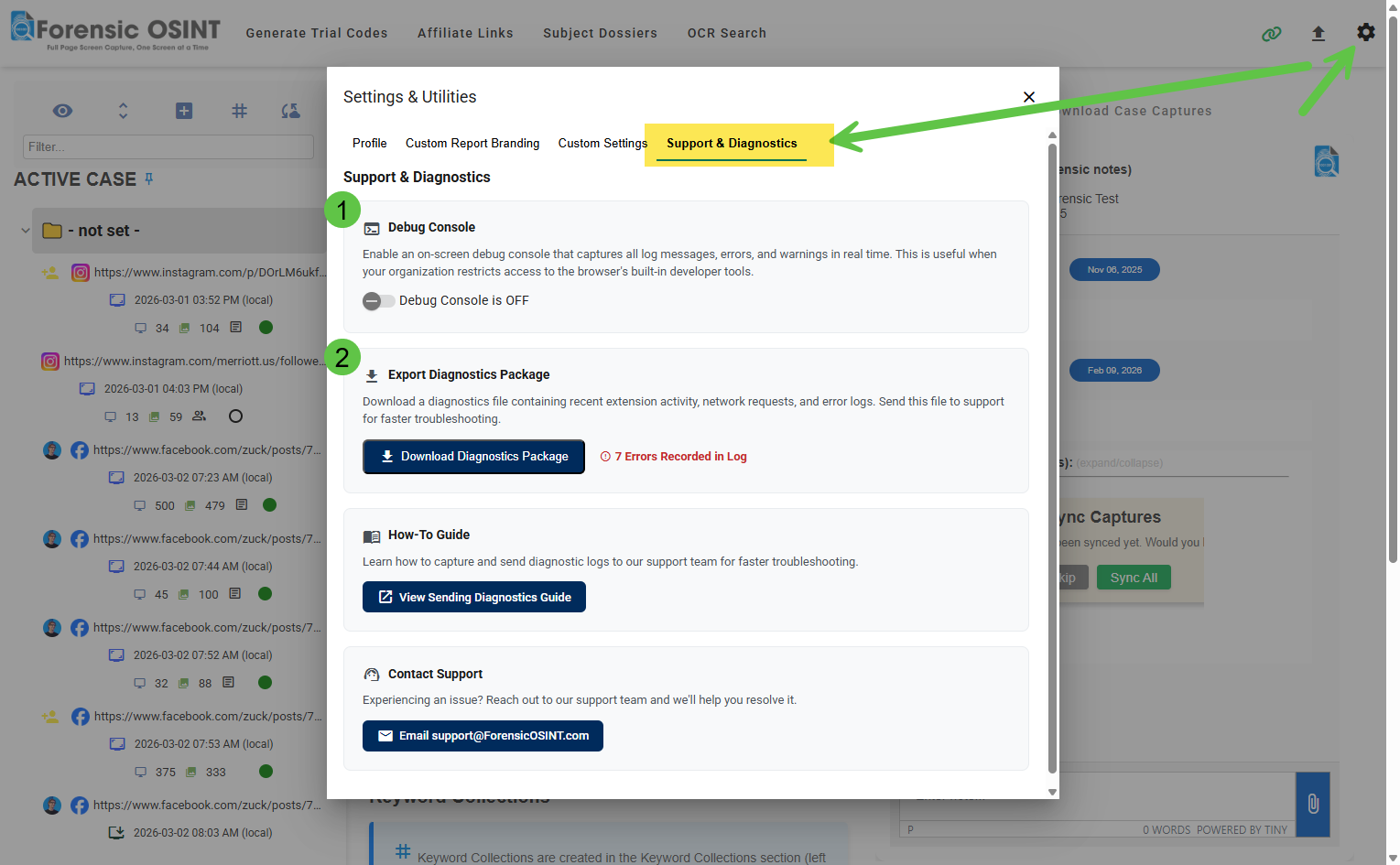
The Forensic OSINT extension includes two diagnostic tools in the Settings & Utilities panel. These tools let you capture and share detailed technical information with support without ever opening browser Developer Tools.
Export Diagnostics Package
This is the primary tool for reporting issues. With one click, you can download a diagnostics file containing recent extension activity, network requests, and error logs. This file captures data from both the extension's background processes and the user-facing interface automatically — no setup required.
How to Export the Diagnostics File
- Click the gear icon in the top-right corner of the extension to open Settings & Utilities.
- Go to the Support & Diagnostics tab.
- Click the "Download Diagnostics Package" button.
- A file will download automatically to your computer.
- Email this file to support@ForensicOSINT.com along with a description of the issue.
Error count indicator: If errors have been recorded, a red counter appears next to the download button showing the number of errors (for example, "7 Errors Recorded in Log"). This helps you know at a glance whether the extension has encountered issues worth reporting.
Tip: Download the diagnostics file as soon as possible after an error occurs. The file contains the most recent activity, and older entries are replaced by newer ones over time.
What's in the Diagnostics File
The diagnostics file is a structured document containing the last ~500 logged events from the extension. It includes:
- Environment details — Extension version, browser information, and platform
- Summary — Counts of errors, warnings, and informational entries; network request statistics; time range of captured data
- Log entries — Up to 500 recent events, each with a timestamp, source, severity level, and a description of what happened
| Source | What It Captures |
|---|---|
| Network requests (background) | All requests made by the extension's sync and background processes — URLs, status codes, duration, and error details for failed requests |
| Network requests (user interface) | Requests made by the extension's interface — URLs, status codes, duration, and error details |
| Console output | Errors, warnings, and log messages from the extension's background service |
| Application errors | Unexpected errors in the extension's user interface |
| State events | Extension lifecycle events (initialization, restarts, etc.) |
Privacy & Security
The diagnostics file contains only extension activity data. It does not include:
- No authentication tokens, cookies, or authorization headers
- No user credentials or personal data
- No browsing history or page content outside the extension
- No request or response content for successful requests — only error responses are captured (truncated to 2,000 characters)
Diagnostics logging runs automatically in the background — there is nothing to enable. The extension continuously maintains a rolling buffer of the most recent events. Older entries are replaced as new ones come in. If the extension restarts (for example, during a browser update), previously captured entries are preserved. The diagnostics system has no impact on extension performance.
Debug Console
The Debug Console is an on-screen log viewer that displays messages, errors, and warnings in real time directly within the extension interface. Use it when support asks you to "watch what happens" during a specific action, or when your organization restricts access to browser Developer Tools.
How to Use the Debug Console
- Click the gear icon in the top-right corner of the extension to open Settings & Utilities.
- Go to the Support & Diagnostics tab.
- Toggle Debug Console to ON.
- Close the settings panel and reproduce the issue — log messages will appear on screen in real time.
- Copy the console content and send it to support.
Tip: The Debug Console is off by default. Remember to toggle it back to OFF when you are done troubleshooting.
Recommended Workflow for Reporting Issues
Sync fails, captures not loading, error message displayed, or unexpected behavior.
Click the gear icon in the top-right corner of the extension.
If a red error counter is displayed next to the download button, errors have been recorded.
Do this as soon as possible after the issue occurs to capture the most relevant data.
Capture what you see on screen, including any error messages or unexpected behavior.
Send the diagnostics file, screenshots, and a brief description to support@ForensicOSINT.com.
CMS Issues — Using Browser Developer Tools
Capturing diagnostics from the Forensic OSINT web application
The built-in diagnostics tools above cover extension issues. If the issue is with the Case Management System (CMS) — the full-page web application where you manage cases, view dossiers, run searches, and generate reports — use the browser's built-in Developer Tools as described below.
Reproduce the Issue & Open Developer Tools
First, navigate to the CMS page where the issue occurs. If possible, note the steps that trigger the problem (for example, "I clicked Generate Report on Case #1234 and got an error").
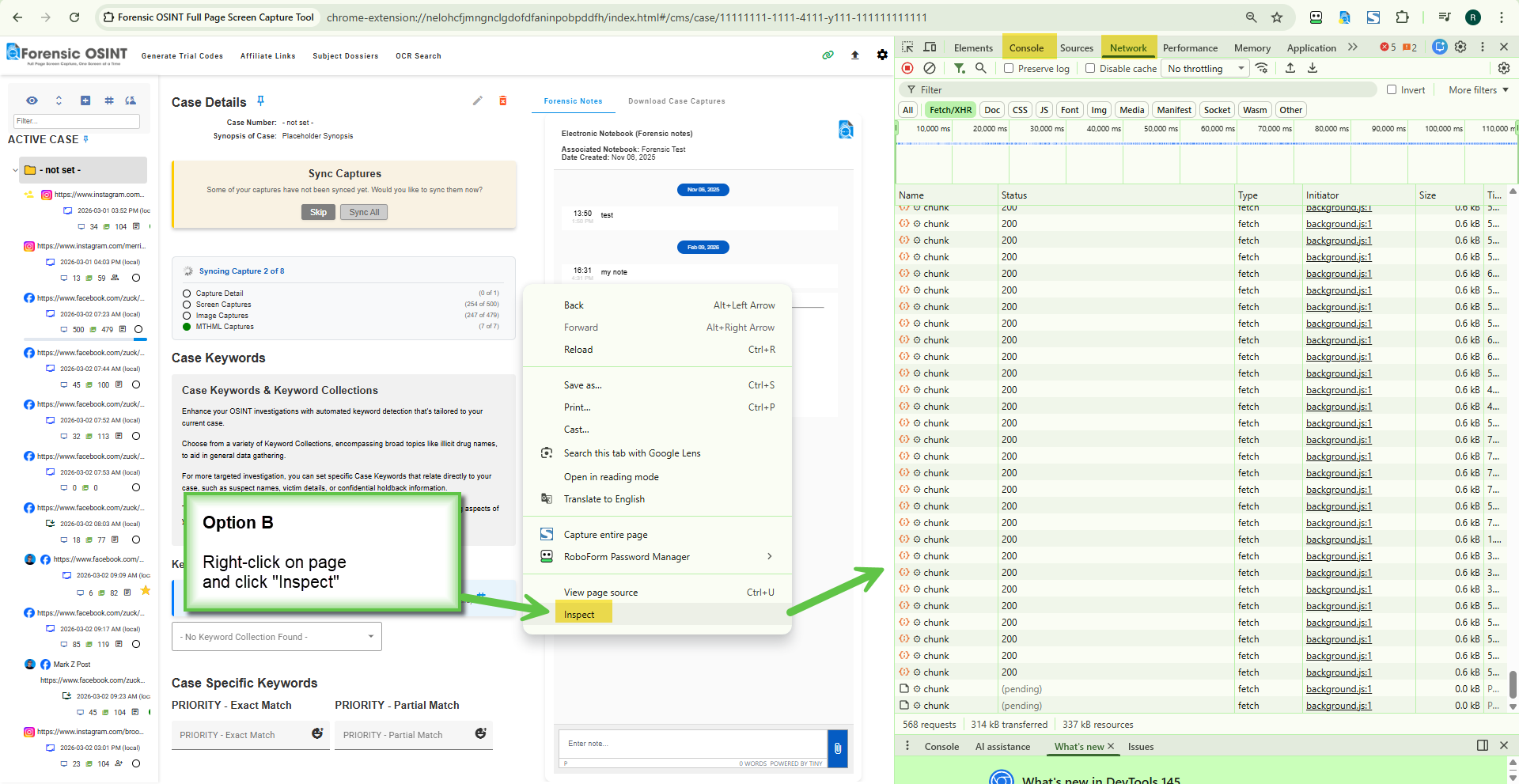
Then, open Developer Tools using one of these methods:
- Keyboard shortcut: Press F12 or Ctrl + Shift + I (Mac: Cmd + Option + I)
- Right-click method: Right-click anywhere on the CMS page and select "Inspect" from the context menu
A panel will appear, typically docked to the right side or bottom of your browser window.
Capture Console Logs
In the Developer Tools panel, click the "Console" tab along the top. You will see a list of messages. Errors appear in red and warnings in yellow/orange.
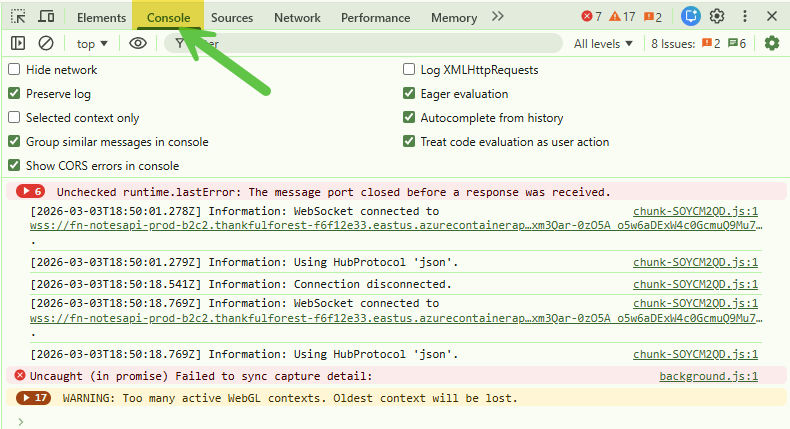
If the console is empty or you do not see errors, try reproducing the issue now (for example, click the button that causes the error) while the console is open. New error messages will appear in real time.
To save the console log:
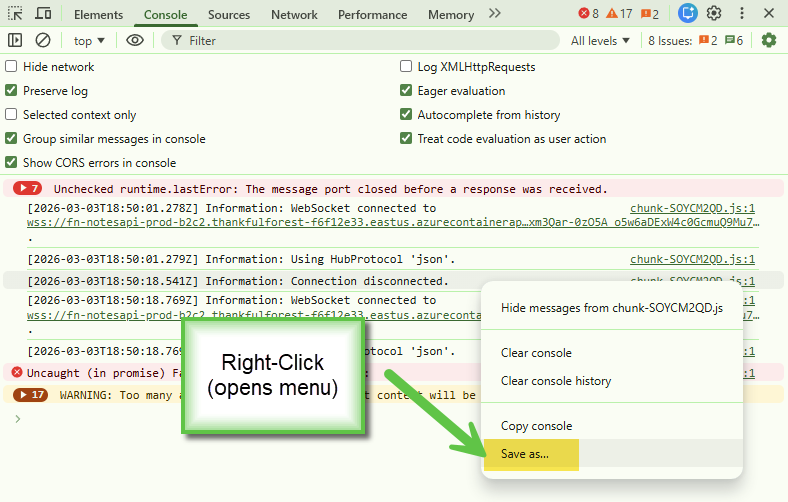
- Right-click anywhere inside the console log area (on the messages themselves).
- Select "Save as..." from the context menu.
- Save the file to a location you can find easily (for example, your Desktop).
- The file will be saved as a .log text file.
Capture Network Activity (HAR File)
In the Developer Tools panel, click the "Network" tab. The Network tab only records activity that occurs while it is open. If the tab is empty, you will need to reproduce the issue with the Network tab open.
With the Network tab open, perform the action that causes the issue. You will see network requests appearing as rows in the list. Failed requests typically appear in red text.
To export the HAR file:
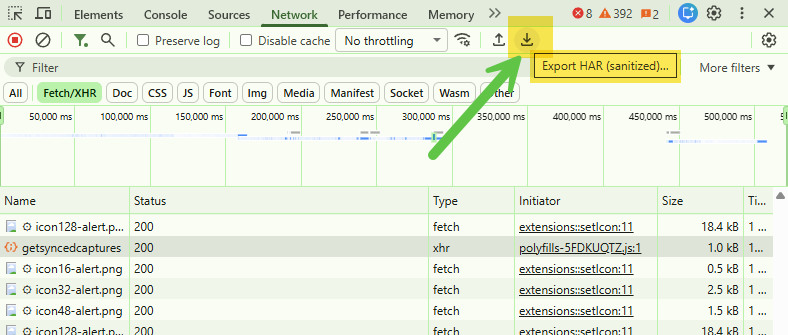
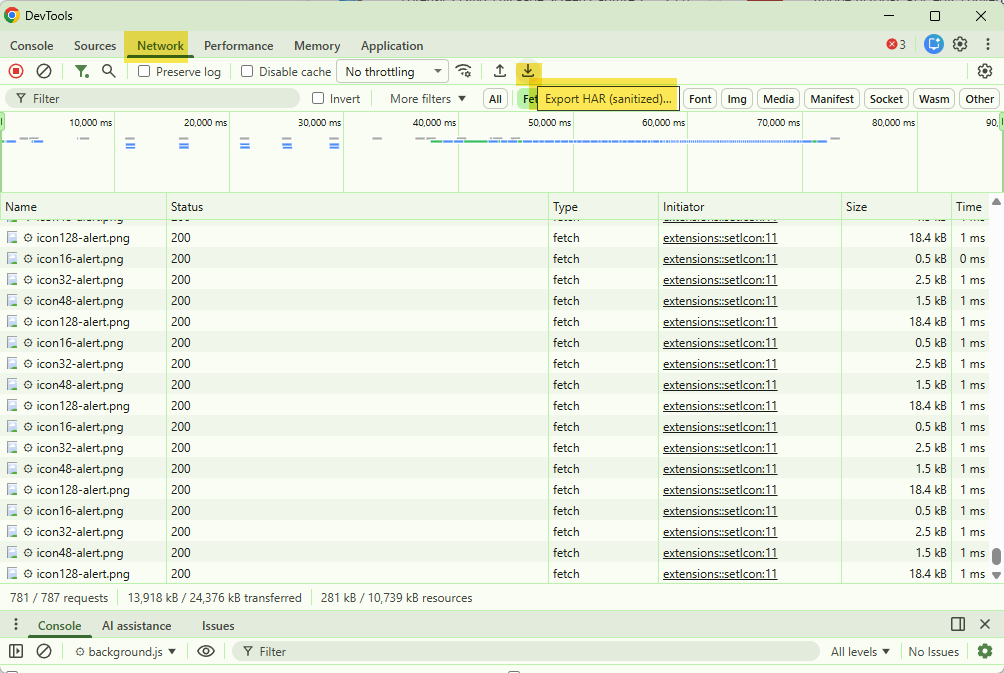
- In the Network tab toolbar (the row with Filter, Preserve log, Disable cache, etc.), locate the down-arrow icon near the top of the panel.
- Click this icon. The tooltip will read "Export HAR (sanitized)..."
- Choose a save location and save the file. It will be saved as a .har file.
What does "sanitized" mean? Chrome automatically removes sensitive data from the HAR file before export, including cookies, authorization headers, and session tokens. The exported file is safe to share with our support team — your login credentials and session data are not included. The file still contains the information we need: request URLs, status codes, error responses, and timing data.
Extension Issues — Advanced Browser Developer Tools
For when support requests browser-level extension logs
In most cases, the built-in diagnostics tools above will provide everything needed. However, our support team may occasionally ask you to open browser Developer Tools for the extension directly. This section covers that process.
The Forensic OSINT Chrome Extension runs in its own isolated environment, separate from the web pages you visit. This means that pressing F12 or right-clicking "Inspect" on a web page will not show you the extension's logs or network activity — it will only show information about the web page itself. To capture diagnostic information from the extension, you need to open Developer Tools specifically for the extension.
There are two areas of the extension that have their own Developer Tools:
- The Side Panel — the visible extension interface you interact with
- The Service Worker — the background process that handles captures, API calls, and data processing (this is where most errors related to failed captures or syncing issues will appear)
Open Developer Tools for the Side Panel
Use this if the issue is with the visible extension interface (Side Panel not loading, buttons not responding, display errors).
- Click the Forensic OSINT extension icon in your Chrome toolbar to open the Side Panel.
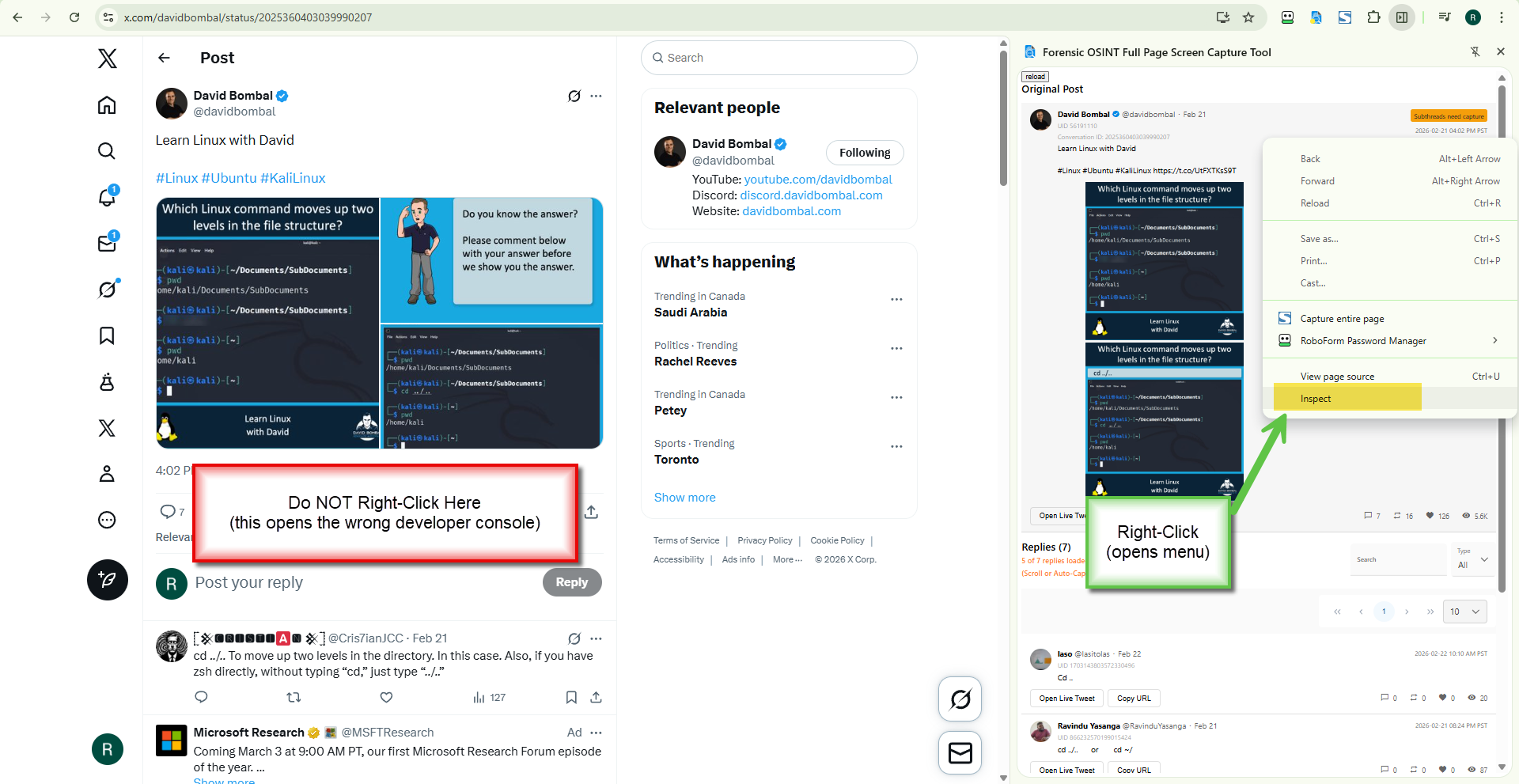
- With the Side Panel open, right-click inside the Side Panel itself (not on the web page behind it).
- Select "Inspect" from the context menu.
- A separate Developer Tools window will open specifically for the Side Panel.
Make sure you right-click in the correct area
Right-click inside the Side Panel (the Forensic OSINT interface), not on the web page behind it. Right-clicking on the web page opens the wrong developer console and will not show extension logs.
Open Developer Tools for the Service Worker
Use this if the issue is with captures failing, data not syncing, API errors, or anything that happens behind the scenes.
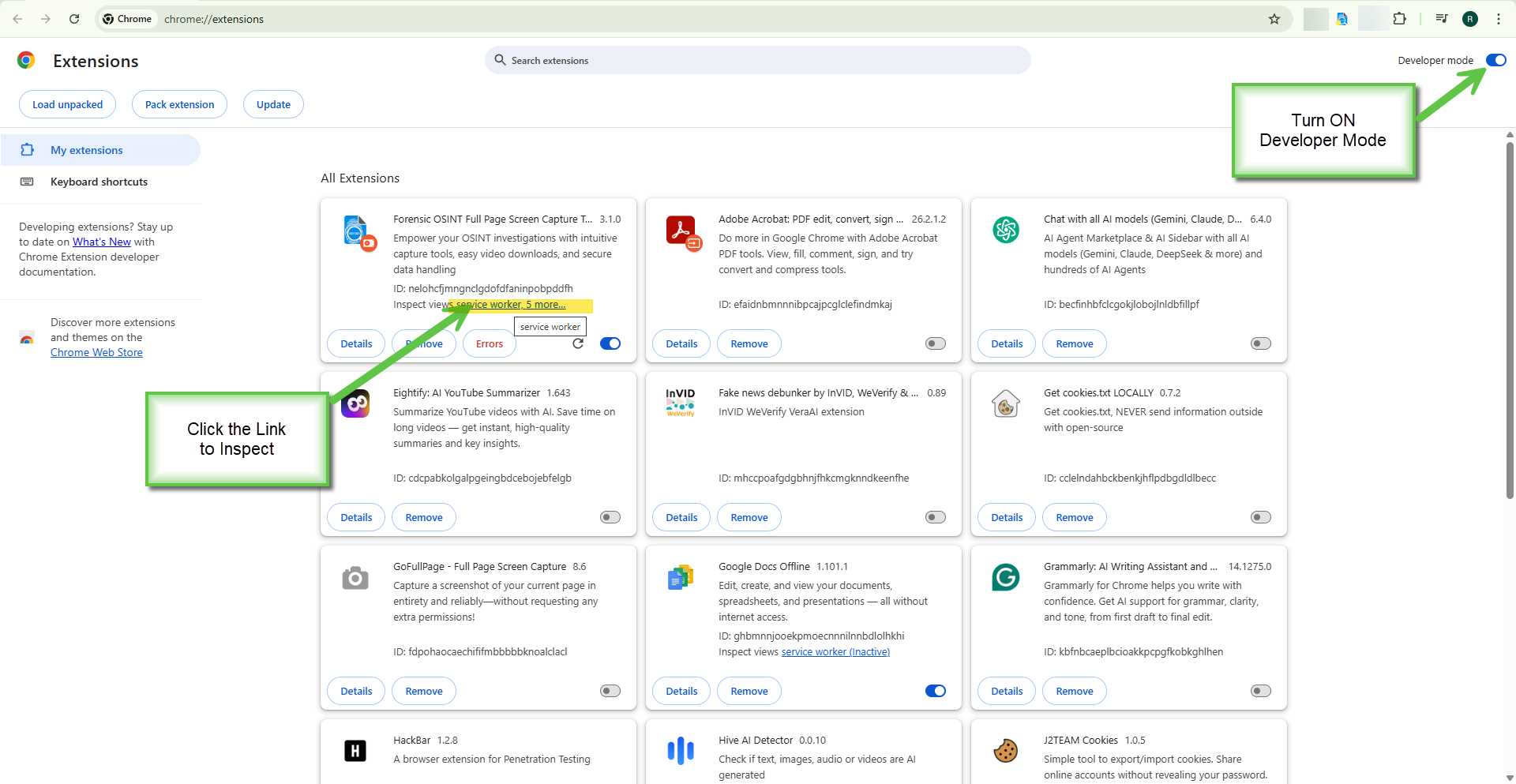
- In your Chrome address bar, type chrome://extensions and press Enter.
- In the top-right corner of the extensions page, ensure the "Developer mode" toggle is turned on (blue).
- Find the Forensic OSINT extension card on the page.
- On the card, look for the line that reads "Inspect views: service worker" and click the "service worker" link.
- A separate Developer Tools window will open for the extension's background service worker.
Tip: The service worker can restart at any time, which clears previous console logs. For best results, open the service worker DevTools first, then reproduce the issue.
Capture Console Logs from the Extension
In the extension's Developer Tools window (either Side Panel or Service Worker), follow these steps:
- Click the "Console" tab.
- Reproduce the issue if needed (go back to the browser and attempt the capture or action that caused the error).
- Right-click anywhere inside the console log area.
- Select "Save as..." and save the .log file.
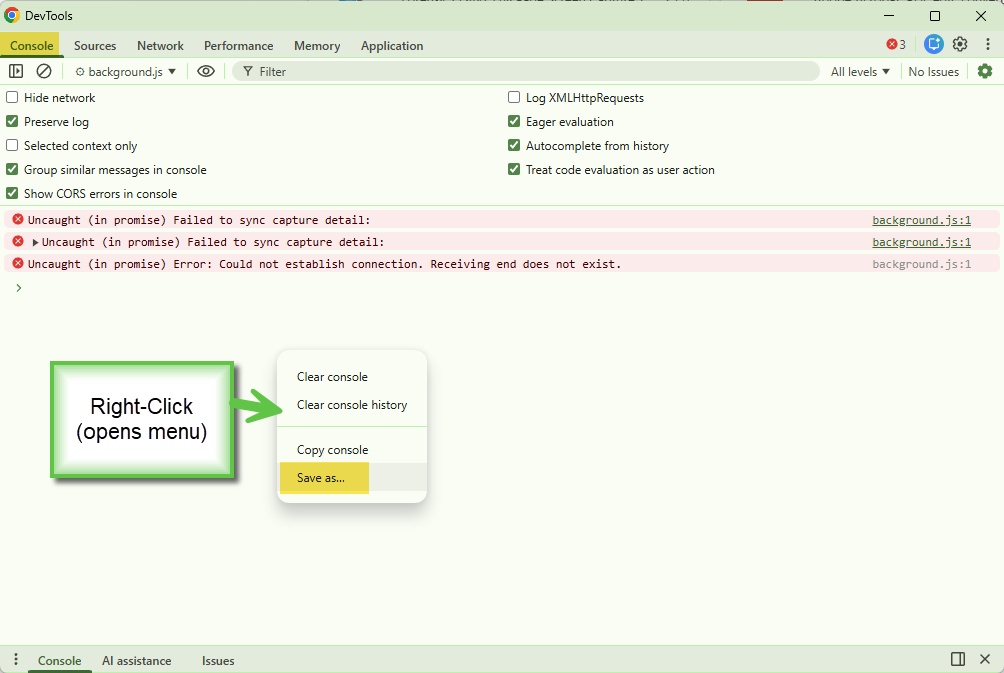
Tip: Check the "Preserve log" checkbox near the top of the Console before reproducing the issue. This keeps logs even if the service worker restarts.
Capture Network Activity from the Extension (HAR File)
In the extension's Developer Tools window:
- Click the "Network" tab.
- If the Network tab is empty, reproduce the issue with the tab open.
- Click the down-arrow export icon in the Network tab toolbar.
- The tooltip will read "Export HAR (sanitized)..."
- Save the .har file.
Capturing Screenshots of the Error
In addition to diagnostics files and logs, a screenshot of the error you are seeing is extremely helpful. Please capture a screenshot showing:
- The error message or unexpected behavior as it appears on screen
- The URL bar so we can see which page the issue occurred on
- Any pop-up dialogs or error notifications that appeared
How to take a screenshot:
- Windows: Press Win + Shift + S to open the Snipping Tool, then select the area you want to capture.
- Mac: Press Cmd + Shift + 4 to capture a selected area, or Cmd + Shift + 3 for the full screen.
Tip: If the issue involves multiple steps or screens, capture a screenshot of each step. The more visual context you provide, the faster we can diagnose the problem.
Send to Support
Attach all captured files to your support email. Here is a checklist of what to include:
- The diagnostics file from the Export Diagnostics Package (recommended for all extension issues)
- Screenshots of the error or unexpected behavior
- The .log file (if you captured console logs via browser DevTools)
- The .har file (if you captured network activity via browser DevTools)
Along with the files, please include a brief description of:
- What you were trying to do
- What happened instead
- Any error messages you saw on screen
- The approximate time the issue occurred
- The URL or page you were on (if applicable)
Quick Reference
| What to Capture | Where to Find It | How to Save |
|---|---|---|
| Diagnostics file (Extension) | Gear icon > Support & Diagnostics tab | Click "Download Diagnostics Package" |
| Debug Console (Extension) | Gear icon > Support & Diagnostics tab | Toggle ON, reproduce issue, copy text |
| Console logs (CMS) | F12 on CMS page > Console tab | Right-click in console > "Save as..." |
| Network activity (CMS) | F12 on CMS page > Network tab | Down-arrow toolbar icon > "Export HAR (sanitized)..." |
| Console logs (Side Panel) | Right-click inside Side Panel > Inspect > Console tab | Right-click in console > "Save as..." |
| Console logs (Service Worker) | chrome://extensions > Developer mode ON > Forensic OSINT > service worker > Console tab | Right-click in console > "Save as..." |
| Network activity (Extension) | Same DevTools as above > Network tab | Down-arrow toolbar icon > "Export HAR (sanitized)..." |
| Screenshots | The page/panel showing the error | Win + Shift + S (Windows) or Cmd + Shift + 4 (Mac) |
Troubleshooting This Process
"Where do I find the diagnostics download button?"
Click the gear icon in the top-right corner of the Forensic OSINT extension to open Settings & Utilities, then click the Support & Diagnostics tab. The "Download Diagnostics Package" button is in the Export Diagnostics Package section.
"The diagnostics file doesn't seem to show the error"
The diagnostics file captures the most recent ~500 events. If the error occurred a long time ago, it may have been replaced by newer entries. Try reproducing the issue, then download the diagnostics file immediately afterward.
"I don't see any errors in the console"
The issue may have occurred before you opened Developer Tools. Try reproducing it with the tools already open.
"The Network tab is empty"
The Network tab only records while it is open. Reproduce the issue after opening the tab.
"I can't find 'Inspect views: service worker' on the extensions page"
Make sure Developer mode is toggled on (top-right corner of chrome://extensions). If the service worker has gone idle, you may see "service worker (inactive)" as a link instead. Click it to wake it and open DevTools.
"The service worker DevTools opened but there's nothing there"
The service worker may have restarted since the error occurred. Check the "Preserve log" checkbox at the top of the Console tab, then reproduce the issue. This keeps logs even if the worker restarts.
"I'm not sure which method to use"
Start with the Export Diagnostics Package — it captures the most comprehensive data with one click. Our support team will let you know if additional information (such as browser DevTools logs) is needed.