The scroll amount setting controls the overlap between consecutive screen captures to ensure comprehensive evidence collection. This overlap ensures that no section of the web page is missed during the capture process.
Understanding scroll overlap
In the example below, observe how screen captures overlap:

Screen Capture 2 includes a small portion of Screen Capture 1 at the top, ensuring continuity between images. This overlap guarantees that no content is missed between consecutive captures.
Adjusting scroll amount
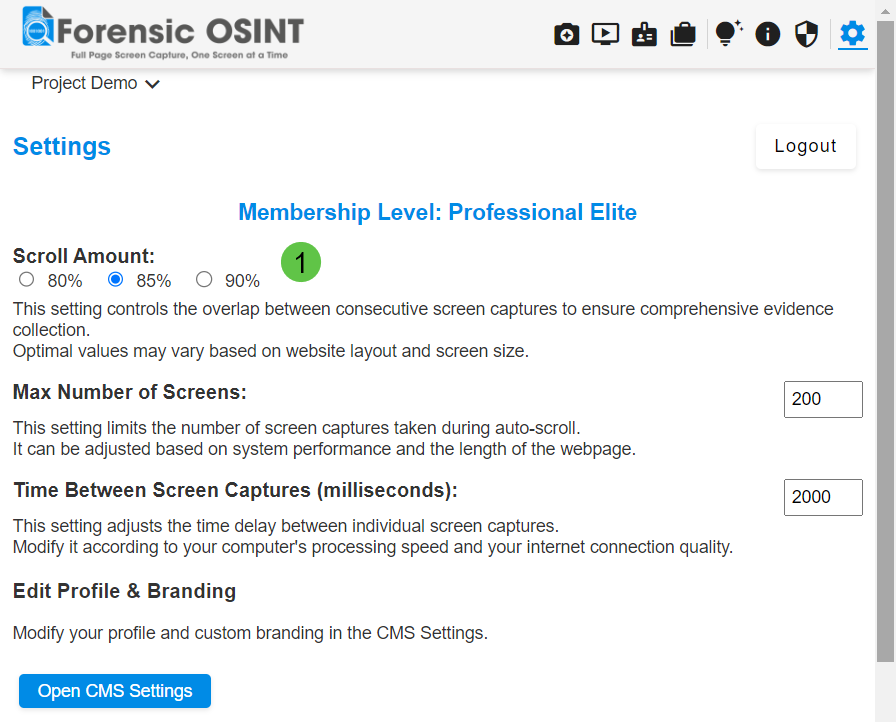
The Scroll Amount can be adjusted in the settings section, accessible via the settings icon.
You can set this value between 80% and 90%. Adjust this setting based on the site you are capturing.
This is particularly useful if the site contains headers or footers that overlap the content.
Tips for best results
Tip: If a website has a sticky header or footer, try lowering the scroll amount to increase overlap. This helps avoid content being hidden behind fixed elements.
Tip: A higher scroll amount (closer to 90%) will capture pages faster with less overlap, while a lower value (closer to 80%) provides more overlap for greater accuracy.