
This guide walks you through installing the Forensic OSINT backend, whether you're setting it up on a local machine (laptop/desktop) or deploying it on an internal server environment.
Prerequisites
Before starting the installation, ensure that you have the following:
Requirements
- Docker installed on your system (download here)
- System Requirements:
- 2 CPU cores
- 4 GB RAM minimum (8 GB+ recommended)
- 20 GB free disk space
- Ports 1433, 65200, and 65201 available
- Terminal/Command Line Access:
- Windows: Command Prompt or PowerShell (run as Administrator)
- macOS/Linux: Terminal
What is Docker? Docker is an open-source platform that simplifies the process of developing, shipping, and running applications. Learn more about Docker and why we use it.
Choosing the Installation Location
The Forensic OSINT backend can be installed on either:
Local Machine
For individual users. The backend runs on the same computer where the Forensic OSINT Chrome Extension is used.
Central Server
For organizations with multiple users. All users can connect and sync their captures to a shared database.
For server installations, ensure the server can be accessed through the network and consider configuring a static IP address or internal domain name. You may also need to configure your firewall. See advanced setup guide.
Install & Setup Guide
Install Docker
Ensure Docker is installed on your system by visiting the Docker website. The site will detect your operating system and provide the appropriate version for installation.
Download & Extract the Setup Scripts
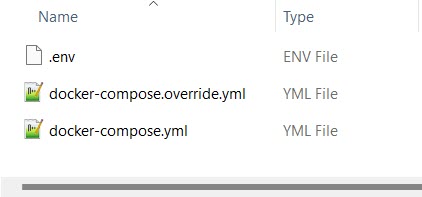
Download the setup scripts as a ZIP archive, and extract it to a folder on the machine or server where you want the backend installed.
Once downloaded, extract the contents of the ZIP archive before proceeding to the next step.
Edit Environment Variables and Run Docker Compose
In this step, you'll configure the necessary environment variables for your installation and start the backend using Docker Compose.
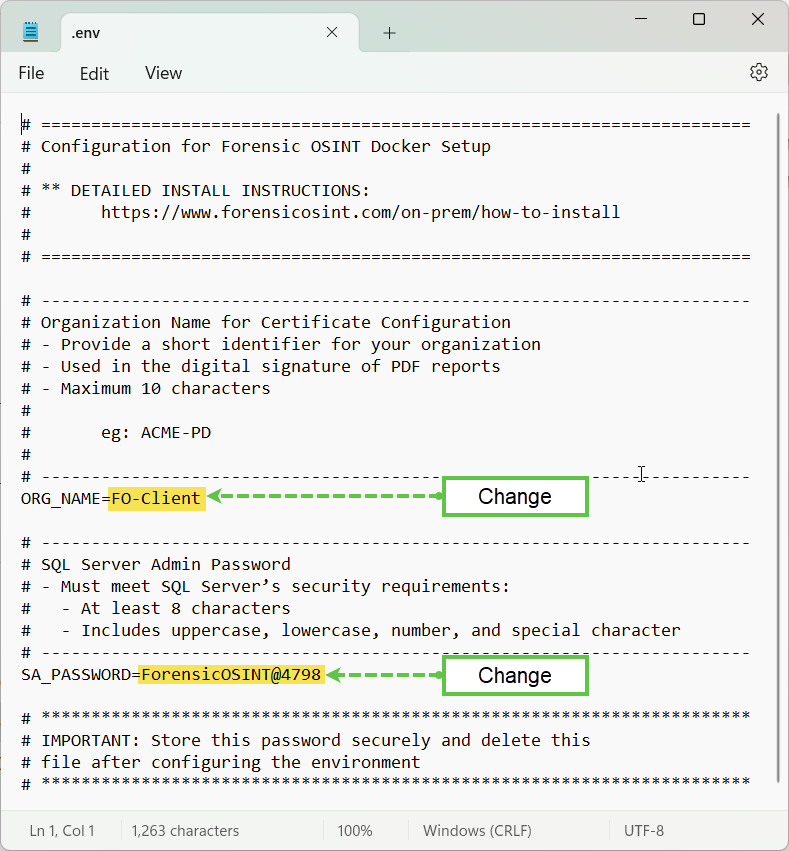
Step 3.1: Edit the .env File
Open the .env file in the extracted folder using any text editor and configure the following required fields:
ORG_NAMEShort identifier for your organization (max 10 characters, e.g., ACME-PD). This is embedded in PDF digital signatures.SA_PASSWORDSQL Server admin password. Must include uppercase, lowercase, number, and special character (min 8 chars). Change the default before first run.Important: Store this password securely as it cannot be recovered later. Consider removing it from the file after deployment per your security policy.
Optional configuration fields:
VOLUME_PATHCustom host directory for evidence storage. Leave blank to use Docker's default path.SHARED_CAPTUREEnable team sharing of captures. Default is False for security. Set to True if you're installing for yourself and potential future team members—this allows captures to be shared among team members. When enabled, additional settings become available to the Admin to control access and sharing rights within the application.OCR_ENABLEDEnable or disable OCR text extraction on captured images. Default is True.OCR_PARALLELISM_LEVELNumber of CPU threads for OCR. Use -1 for automatic (recommended) or a fixed number like 1 for low-resource systems.Using an existing SQL Server? You can connect to your organization's SQL Server 2019+ instead of the containerized database. See the Advanced Setup Guide for instructions.
Step 3.2: Save and Run Docker Compose
- Save the .env file after making your changes.

- Open a Terminal or PowerShell window in the same directory where the Docker Compose files are located.
You can do this by right-clicking inside the folder and selecting "Open in Terminal" (or "Open PowerShell here" on Windows).
Run the Docker Compose command to start the backend setup:
docker compose -f docker-compose.yml -f docker-compose.override.yml up -d --build --remove-orphansFirst run will pull images, which may take several minutes depending on your connection speed.

Once the command completes, Docker will set up and run the backend services. Proceed to the next step to verify everything is working correctly.
Verify Docker Installation
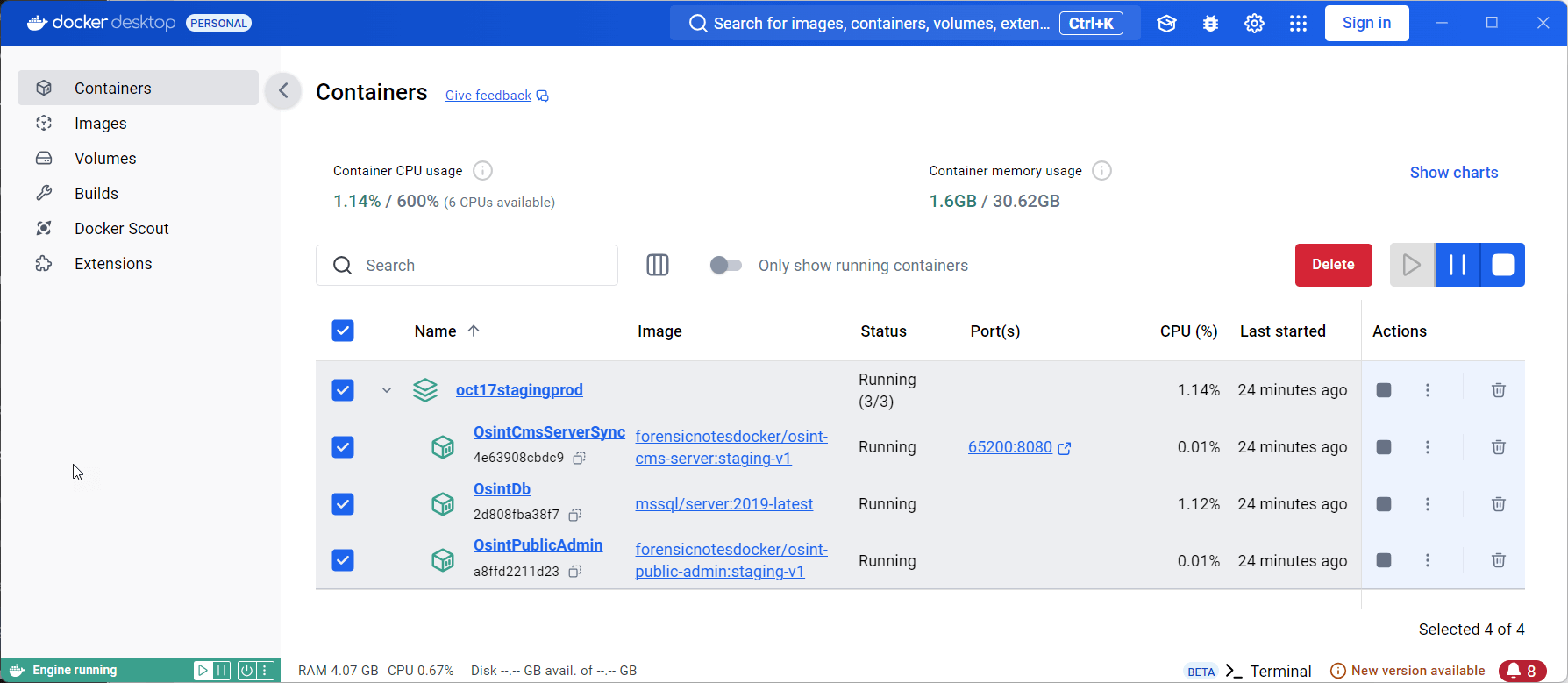
Once the setup completes, verify the installation in Docker Desktop. You should see three running containers.
Containers
The following three containers should be running:
- OsintDb – SQL Server database (port 1433)
- OsintCmsServerSync – Core API and sync service (port 65200)
- OsintPublicAdmin – Licensing and activation service (port 65201)
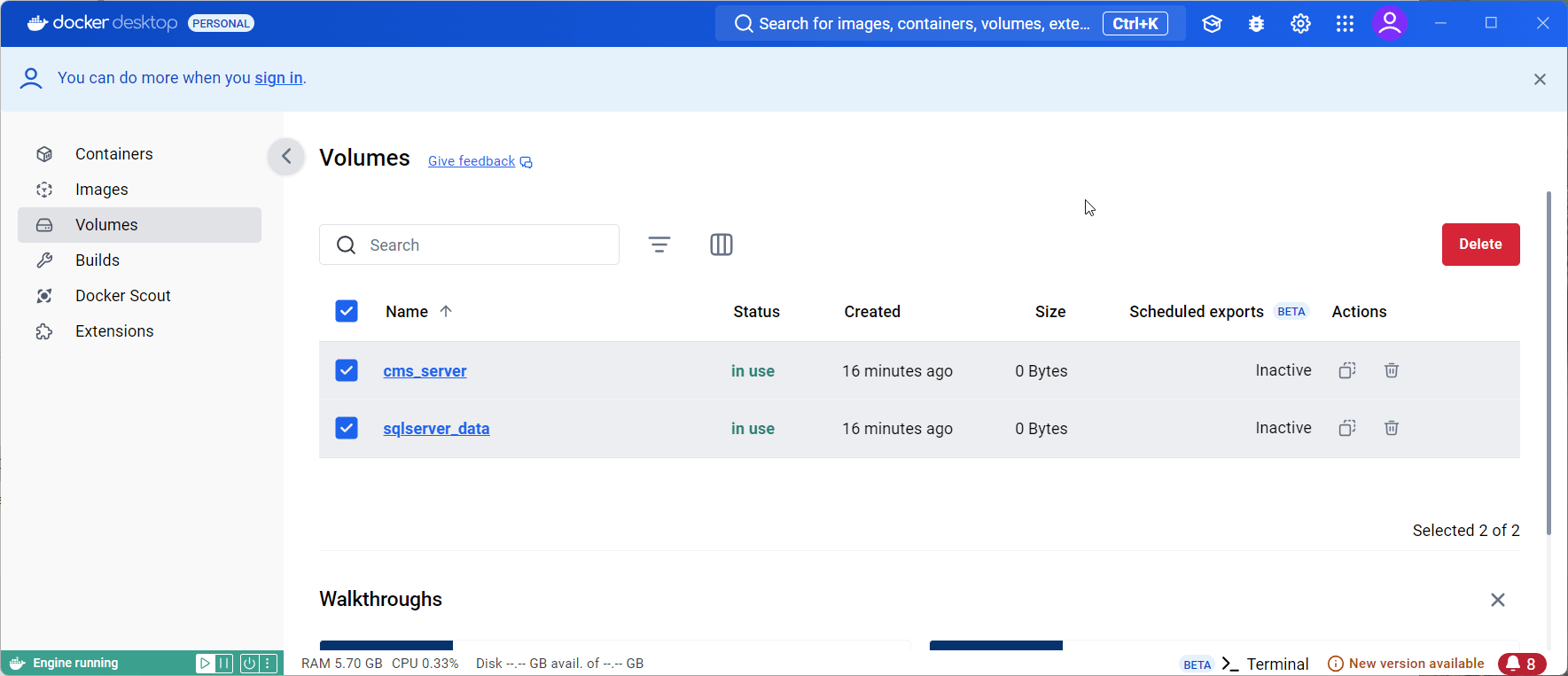
Volumes
The cms_server and sqlserver_data volumes should be visible under the Volumes tab, indicating that data is being correctly stored.
Images
You should see the Docker images for the OSINT backend services and SQL Server listed in Docker Desktop.
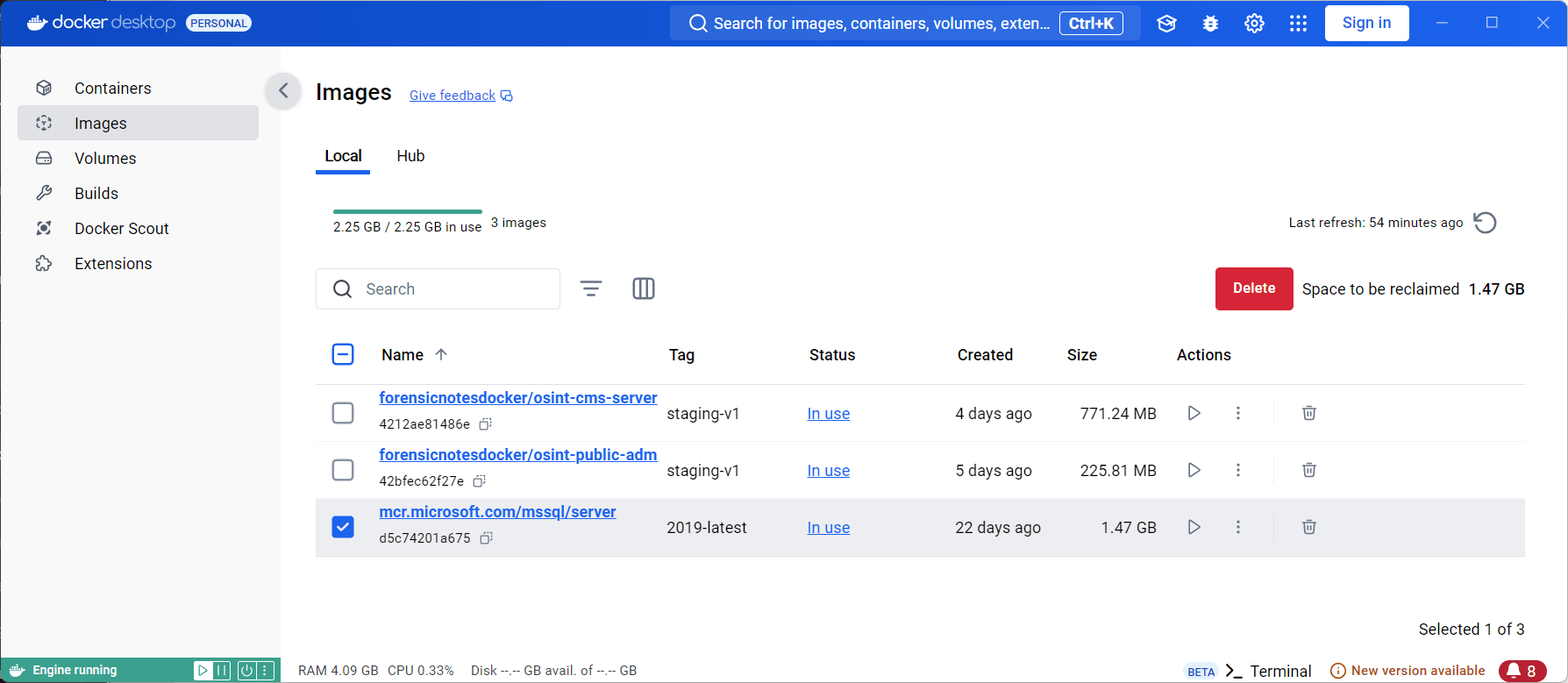
By confirming these containers, volumes, and images in Docker, you can be sure that the backend is fully installed and running properly.
Mac Computers (Apple Silicon)
For users with newer Apple Silicon Macs (M1 or M2, introduced in 2020 and beyond), Docker may require additional configuration to run the Forensic OSINT backend. This setup should work out of the box on Intel-based Macs.
Enable Rosetta for x86/amd64 Emulation
- Open Docker Desktop on your Mac.
- Go to Settings > General.
- Scroll down and check Use Rosetta for x86/amd64 emulation on Apple Silicon.
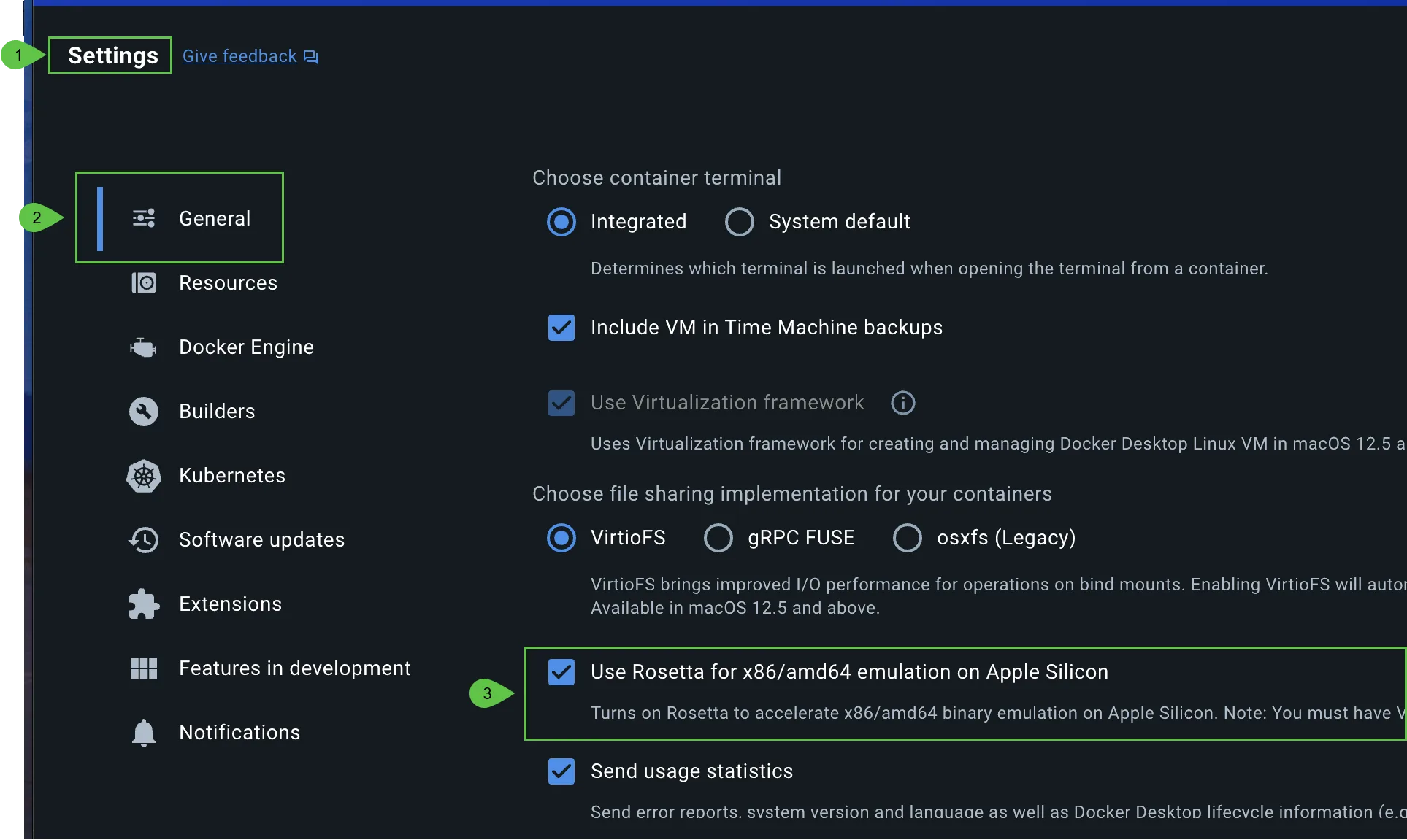
This setting allows Docker to emulate x86/amd64 architecture, which is needed for running some applications on Apple Silicon. For more information, refer to this Stack Overflow article.
This setting is only required for Apple Silicon (M1/M2) Macs. If you're using an Intel-based Mac, this step is not necessary.
Enable Syncing in the Chrome Extension
Now that your backend is running, you need to configure the Chrome Extension to connect to it.
Follow our detailed guide to enable syncing:
Step-by-step instructions for configuring the Chrome Extension to sync with your backend.
Confirm API is Running (Optional)
To verify that the backend API is running, open your browser and visit:
If the page loads successfully, the backend API is up and running. No further action is needed unless troubleshooting is required.
Troubleshooting
Docker Desktop won't start (Windows)
- Enable Hyper-V by running PowerShell as Administrator:
Enable-WindowsOptionalFeature -Online -FeatureName Microsoft-Hyper-V -All - If using WSL2 backend, ensure WSL is up to date:
wsl --update - Enable SVM/Virtualization in your BIOS settings. Search your motherboard model + "enable SVM" for instructions.
SQL Server fails to start
- Ensure
SA_PASSWORDmeets complexity requirements (uppercase, lowercase, number, special character, min 8 chars). - Confirm at least 2 GB RAM is available to the container.
- Check logs:
docker logs OsintDb
CMS Server shows connection errors
- Verify
SA_PASSWORDmatches in both the.envfile and the running OsintDb container. - OsintDb may need 15-30 seconds to initialize on first run before CMS Server can connect.
Port conflicts
If ports 1433, 65200, or 65201 are already in use, edit the left side of the port mapping in docker-compose.override.yml.
Example: Change "1433:1433" to "1434:1433" to expose SQL Server on port 1434 instead.