
This guide is for Admins setting up a Single-Tenant or On-Prem deployment of Forensic OSINT. It explains how to connect your CMS to your backend, invite your team, and manage user access.
Before You Begin
Before you start, ensure you have the following information ready:
Requirements
- Your backend URL (for example,
https://agency.forensicosint.comorhttp://localhost:65200) - Your organization's activation code
- Admin access to your team's Forensic OSINT CMS
- Your logo and header details for Custom Branding (can be added later)
These items are required to complete the onboarding process.
Quick-Start Checklist
- Connect your CMS to the backend using your custom URL.
- Verify the connection. The first user to connect automatically becomes the Admin.
- Set up Custom Branding so all reports generated by your team include your organization's branding.
- Send the setup email to your team (template provided below).
- Each team member creates their account following the Sign-Up Guide.
- Users activate their accounts using the organization's activation code.
- After activation, users set up their backend connection.
- Confirm that all users appear in User Management within the CMS.
- Promote additional Admins as required.
1. Connect to Your Backend Server
To begin, connect the CMS to your backend server.
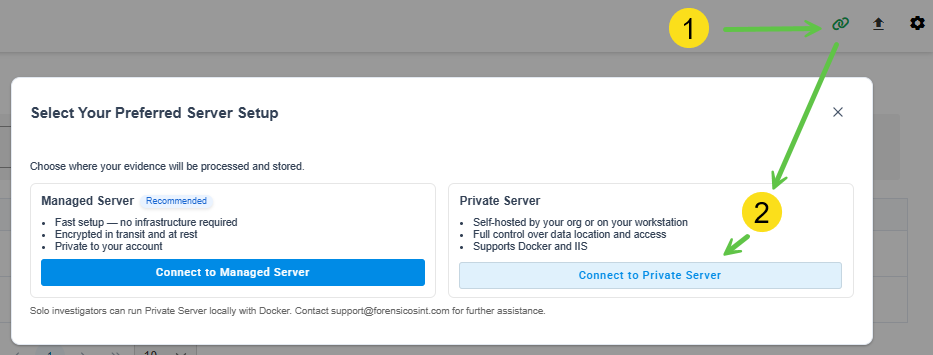
Click the Link Icon
Click the Link icon.
Select Private Server
Select Private Server and then click Connect to Private Server.
Expand Private Backend URL
In the "Private Server or Custom Deployment" dialog, expand I already have a Private Backend URL.
Enter Your Backend URL
Enter your backend URL (for example, https://agency.forensicosint.com or http://localhost:65200).
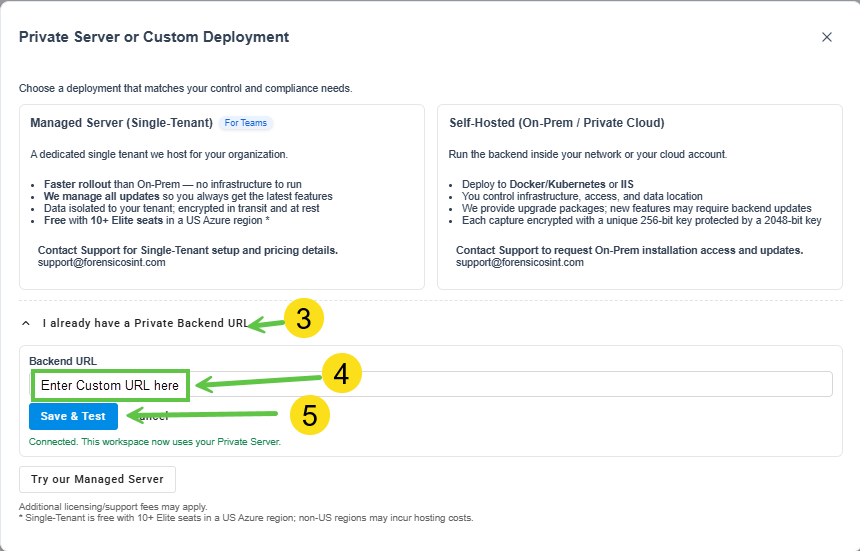
Save & Test
Click Save & Test to confirm the connection.
The first user to connect becomes the Admin automatically. This account will have full control over user access and team management.
If the connection fails, confirm that your URL includes https:// and that any port number (for On-Prem setups) matches your backend configuration.
2. Verify Your Connection
After saving, the CMS will confirm a successful connection. Once connected, your workspace will automatically use your Private Server for all future captures and syncing.
3. Set Up Custom Branding
Before inviting your team, configure your organization's branding. This ensures that all reports generated by users display your logo, header text, and colors.
Follow the steps here: Custom Branding Guide
Branding can only be edited by Admins. Updates apply instantly across all reports generated by your users.
4. Send Setup Email to Your Team
Once your backend and branding are configured, send your team the following email so they can create and activate their accounts.
Plain-Text Email Template for Admins
Subject: Forensic OSINT - Team Setup Instructions

Hi Team,

We're now set up with Forensic OSINT using our dedicated backend.

Please follow these steps to create your account and connect to our backend:

1. Go to: https://www.forensicosint.com/support/how-to-sign-up-to-forensic-osint
   Create your account using your *legal name* (as it will appear on reports).

2. Once your account is created, activate your license by following the instructions at:
   https://www.forensicosint.com/support/activate-code
   Use the following activation code for our organization:
   [ENTER ACTIVATION CODE HERE]

3. After activation, open the Forensic OSINT Chrome Extension:
   https://www.forensicosint.com/support/setup-private-backend-server
   - Click the Link icon (top-right)
   - Select "Connect to Private Server"
   - Expand "I already have a Private Backend URL"
   - Enter the following URL:
     [ENTER YOUR BACKEND URL HERE]
   - Click "Save & Test"

4. Please ensure you are using your *dedicated Chrome profile* for Forensic OSINT:
   https://www.forensicosint.com/support/dedicated-chrome-profile-for-forensic-osint

Once completed, you will appear in our CMS.
If you encounter any issues, let me know so we can verify your setup.

Thanks,
[YOUR NAME]
Admin - [YOUR ORGANIZATION NAME]
5. User Setup Steps
Each team member will:
Create an Account
Create an account following the Sign-Up Guide.
Enter Legal Name
Enter their legal name during registration.
Activate Account
Follow the Activation Code Guide to activate their account using the code provided by the Admin.
Connect to Backend
After activation, connect to the backend by:
- Clicking the Link icon
- Selecting "Private Server"
- Expanding "I already have a Private Backend URL"
- Entering the provided backend URL
- Clicking "Save & Test"
Use Dedicated Chrome Profile
Use a dedicated Chrome profile for all Forensic OSINT work.
Proper activation and backend connection ensure all captures sync correctly.
6. Team Management in the CMS
Once users have joined, go to User Management in the CMS menu.
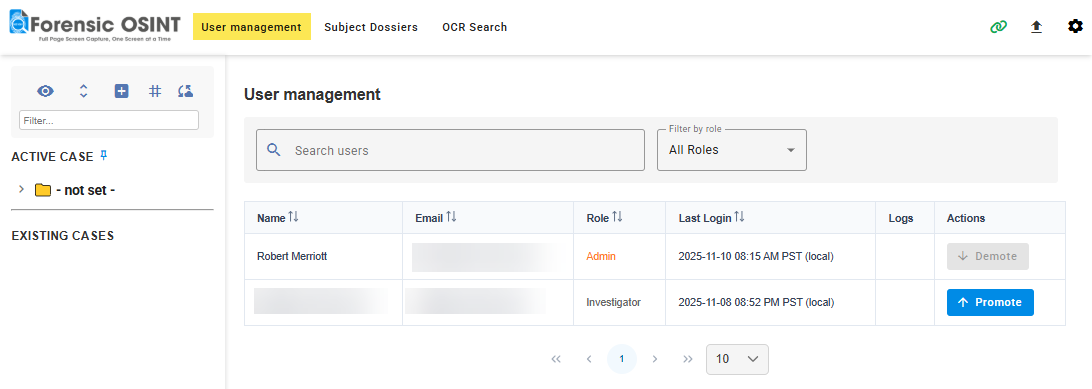
Here, Admins can:
- View all team members connected to your tenant.
- See their role (Admin or Investigator).
- Promote or demote users as needed.
Only Elite users can be Admins, and only Admins can access the User Management menu.
Access Levels
- Admin (Elite only): Full control, can manage users and roles.
- Essential User: Can only view their own captures. They can see that other captures exist, but not open or download them.
Logs and notifications for user changes will be added in future updates.
7. Troubleshooting
If users cannot connect:
Connection fails
- Confirm they entered the correct backend URL (including https://).
- Verify they saved and tested the connection.
- Ensure the backend server is running and accessible within your network.
Users do not appear in User Management
- Confirm they activated their accounts with the correct code.
- Refresh the CMS after activation to update the user list.
8. Related Articles
- Sign-Up Guide
- Activation Code Guide
- Custom Branding
- Legal Name - Why It's Important
- Dedicated Chrome Profile
Next Steps
Once your team is onboarded and connected, you can begin syncing captures, generating signed PDF reports, and exporting full disclosure packages directly from the CMS.
Quick-Start Recap
- Connect your CMS to the backend.
- Verify your connection.
- Configure Custom Branding.
- Send setup instructions to your team.
- Team members sign up and activate accounts.
- Team members connect to the backend.
- Confirm users appear in CMS.
- Promote Admins as needed.