
Single Image Full Page Capture stitches every viewport screenshot of a page into one continuous image. It's great for visual review and reports — but stitching tall images is memory-intensive, and a few settings let you trade memory use against file size and capture speed.
What is Single Image Full Page Capture
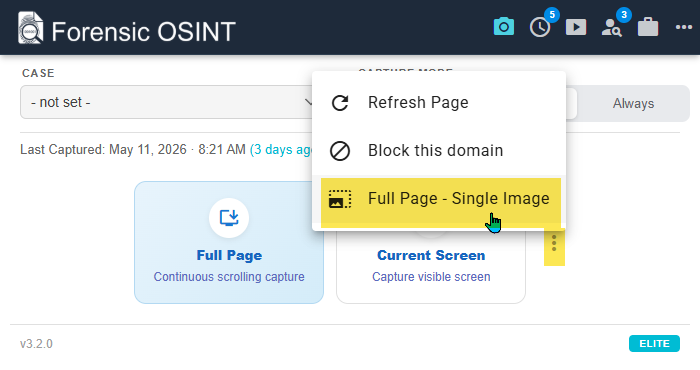
When you run a Full Page capture, Forensic OSINT scrolls the page and takes a screenshot of each viewport. The Single Image Full Page Capture feature then stitches those viewport screenshots together into one tall image — ideal for quick visual review, reports, and sharing without needing to flip through dozens of frames.
You can run it two ways:
- As a standalone quick capture for non-evidentiary work where you just need a clean visual of the full page.
- Automatically included as part of every standard Full Page capture — every court-ready capture now ships with both the granular screen-by-screen evidence and a single stitched full-page image in the same package.
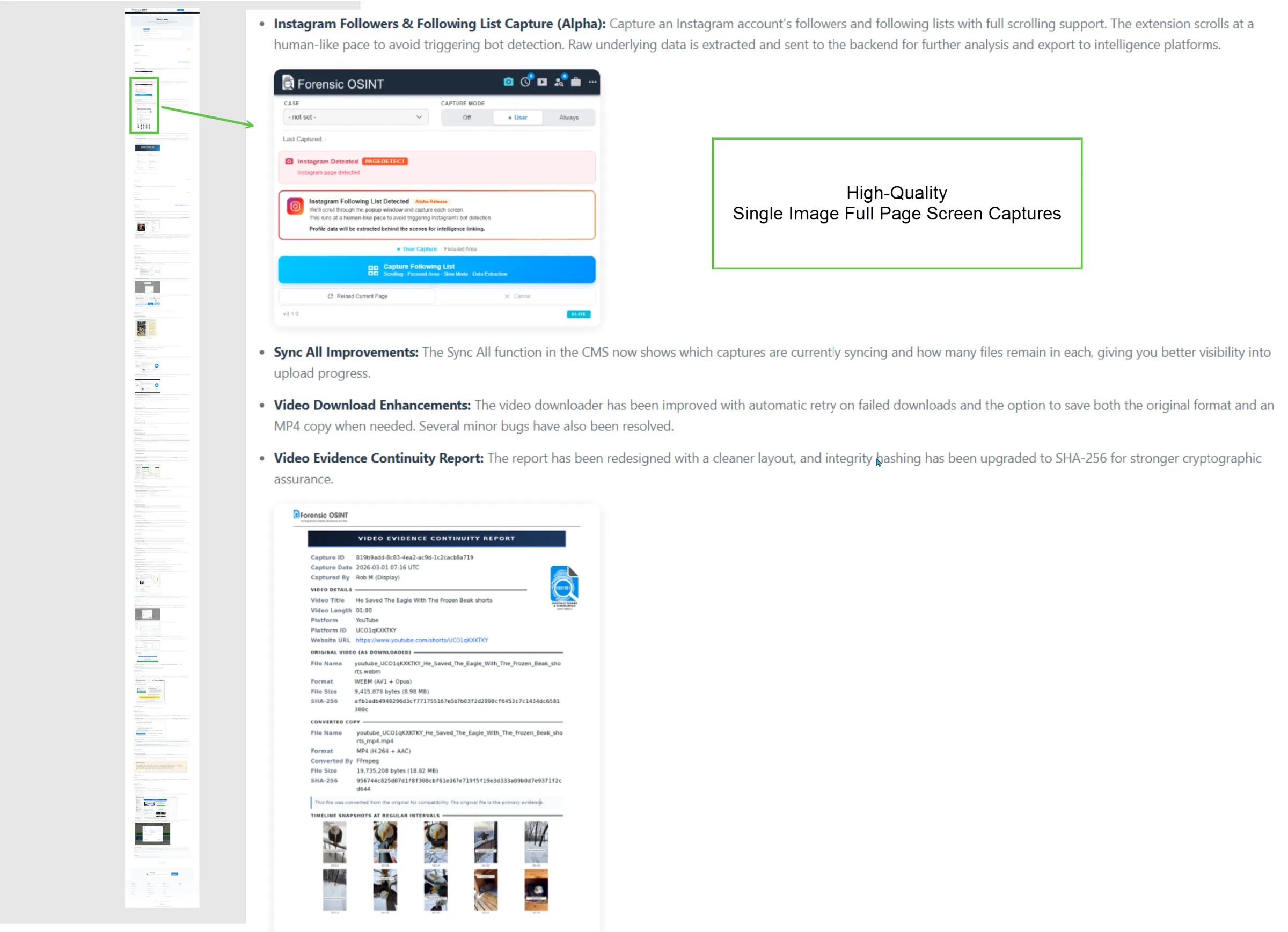
Per-viewport screenshots and the metadata overlay always remain PNG (lossless). Only the stitched single-image chunks use the format and quality settings described below.
Where to find the settings
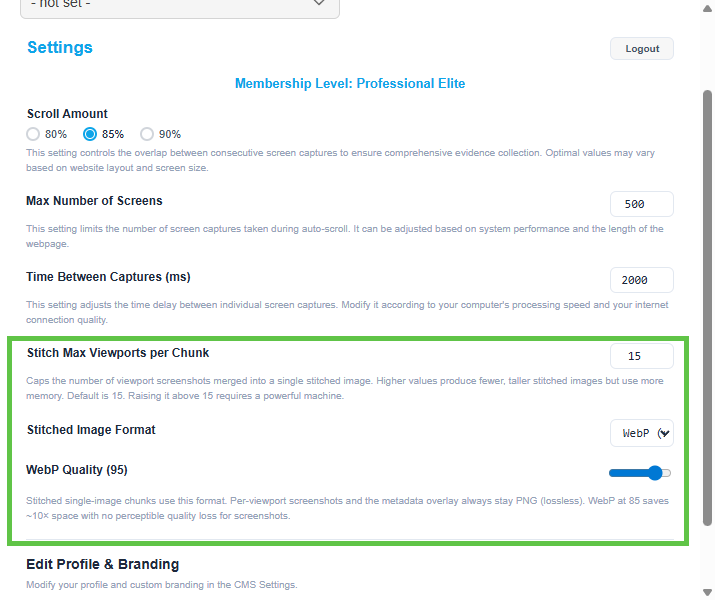
Open the Forensic OSINT extension, click the settings (gear) icon, and scroll down to the Single Image section. You'll see three controls: Stitch Max Viewports per Chunk, Stitched Image Format, and WebP Quality.
Stitch Max Viewports per Chunk
This caps how many viewport screenshots are merged into a single stitched image. Higher values produce fewer, taller stitched images but use more memory. The default is 15.
When a page is taller than your chunk limit, Forensic OSINT produces multiple stitched chunks instead of one giant image — for example, a 60-viewport-tall page at the default of 15 will produce 4 stitched chunks. This protects the browser from running out of memory on extremely tall pages.
Tip: Raising this above 15 requires a powerful machine. If you have 32 GB+ of RAM and a fast CPU, try 20–30 to get fewer, taller images. On lower-end laptops, lower the value to 8–10 to avoid browser slowdowns or crashes during stitching.
Symptoms that you've set it too high
Browser hangs during stitching, "Aw, Snap!" tab crashes, or failed exports on very tall pages. Lower the value and try again. The per-viewport screenshots are unaffected by this setting — only the stitched image needs to be re-generated.
Stitched Image Format
Choose between WebP (default) and PNG for the stitched single-image chunks.
- WebP — modern compressed format. Files are roughly 10× smaller than PNG at high quality settings (85–95) with no perceptible quality loss for screenshots. Best default for almost everyone.
- PNG — lossless. Larger files but bit-for-bit pixel accuracy. Choose this only if your workflow specifically requires lossless stitched images.
This setting only affects the stitched single-image output. The per-viewport screenshots that make up your court-ready evidence package are always saved as lossless PNG — the WebP setting never touches them.
WebP Quality
When the format is set to WebP, this slider controls the encoding quality. The range is 1–100, with the default at 95.
- 95 (default) — near-lossless. Best for archival and review.
- 85 — saves ~10× space versus PNG with no perceptible quality loss for screenshots. Recommended for most users who want smaller files.
- 70–80 — visible compression on fine text and gradients, but acceptable for casual sharing. Files are even smaller.
- Below 70 — not recommended. Compression artifacts start to interfere with screenshot legibility.
Tip: If disk space and cloud sync time matter more than pixel-perfect detail, drop the quality to 85. The visual difference is invisible to the human eye on text and UI screenshots, and your captures will sync about 10× faster.
Recommended presets by computer spec
Use these as starting points, then adjust based on how your machine behaves on the pages you actually capture.
Low-end laptop (8 GB RAM, integrated graphics)
- Stitch Max Viewports per Chunk: 8–10
- Stitched Image Format: WebP
- WebP Quality: 85
Keeps memory usage low, produces smaller files, and avoids browser hangs during stitching.
Mid-range desktop or laptop (16 GB RAM)
- Stitch Max Viewports per Chunk: 15 (default)
- Stitched Image Format: WebP
- WebP Quality: 90–95
The defaults are tuned for this class of machine. No changes needed for most users.
High-end workstation (32 GB+ RAM, dedicated GPU)
- Stitch Max Viewports per Chunk: 20–30
- Stitched Image Format: WebP
- WebP Quality: 95
Fewer, taller stitched chunks per page. You'll trade a bit of memory for a cleaner single-image output that's easier to scroll through during review.
Archival workflow (lossless required)
- Stitch Max Viewports per Chunk: 10–15
- Stitched Image Format: PNG
- WebP Quality: ignored
PNG output is larger but bit-for-bit lossless. Keep the chunk size conservative since PNG stitching uses more memory than WebP.
Troubleshooting
The browser hangs or crashes during stitching
Lower Stitch Max Viewports per Chunk by 5 and retry. Close other tabs and heavy applications before capturing very tall pages.
Stitched images are unexpectedly large
You're probably on PNG. Switch Stitched Image Format to WebP and the same image will typically shrink by ~10×.
Text looks fuzzy in the stitched image
Raise WebP Quality back to 90 or 95. Quality below ~80 starts to introduce visible artifacts on small text.
Captures take much longer than before
The stitching step adds time on top of the per-viewport capture. If you don't need the single-image output, you can still rely on the per-viewport screenshots in your standard Full Page captures — those are unchanged. The stitched image is an additional artifact, not a replacement.
Changing these settings only affects future captures. Existing captures keep the format and quality they were originally produced with. To re-generate stitched images with new settings, re-run the capture.